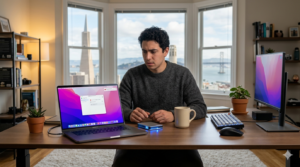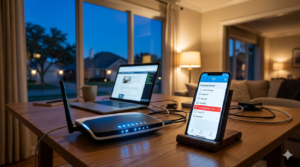

It’s a frustrating situation that many people in Dallas know all too well. You run an internet speed test, and the results are fantastic. You’re paying for high-speed service, and the numbers prove you’re getting it. Yet, when you try to get work done, stream a movie, or join a video call, your laptop feels like it’s stuck in the mud. Browsing is a chore, applications take forever to load, and your productivity grinds to a halt.
This disconnect can be incredibly confusing. If your internet is fast, shouldn’t your laptop be fast, too? For the thousands of Dallas residents working from home, attending online classes, or simply trying to stay connected, a slow laptop is more than just an annoyance—it’s a major roadblock. You start to wonder if you need a new computer, but the real cause might be something else entirely. Let’s clear up the confusion and explore what’s actually wrong.
Why Fast Internet Doesn’t Always Mean a Fast Laptop
One of the biggest misconceptions is that internet speed and computer speed are the same thing. They are two separate components that work together to create your online experience.
Think of it like a highway system. Your internet connection is the highway itself. A fast connection means you have a wide, clear, multi-lane highway with a high speed limit. Data can travel to and from your home very quickly. Your laptop, however, is the car you’re driving on that highway. If your car has a weak engine, flat tires, or is weighed down with too much cargo, it doesn’t matter how clear the road is—you’re still going to move slowly.
Your laptop’s performance depends on its internal resources: the processor (CPU), memory (RAM), storage drive (SSD or HDD), and graphics card. These parts handle tasks like opening files, running software, and displaying images. When these resources are strained, your entire system slows down, no matter how fast your internet connection is.
Common Reasons Your Laptop Is Slow Even with Fast Internet
If your laptop is running slow with fast internet, the problem is almost always located within the device itself. Here are some of the most common culprits we see when providing home tech support in Dallas.
Too Many Startup and Background Programs
Many applications are designed to launch automatically when you turn on your laptop. While some are necessary, others run in the background, consuming valuable memory and processing power without you even realizing it. Over time, the number of these programs can grow, leaving fewer resources for the tasks you actually want to do.
Low RAM or Storage Issues
RAM (Random Access Memory) is your laptop’s short-term memory. It’s where active programs and data are stored for quick access. If you have too many applications or browser tabs open at once, you can run out of RAM. When this happens, your system slows to a crawl as it struggles to shuffle data around. Similarly, a nearly full storage drive (your hard drive or SSD) can also severely impact performance, as the operating system needs free space to function properly.
Outdated Operating System or Drivers
Your laptop’s operating system (like Windows or macOS) and its drivers are the core software that makes your hardware work. Manufacturers regularly release updates that include performance improvements, bug fixes, and critical security patches. Running on outdated software can lead to inefficiencies and compatibility problems that cause your slow laptop issues.
Browser Overload
Your web browser can be a major resource hog. Having dozens of tabs open at once consumes a significant amount of RAM. Additionally, browser extensions—even helpful ones—add to the load. Over time, a large cache of temporary files and cookies can also contribute to a sluggish browsing experience, making it feel like your internet is slow when it’s actually your browser that’s struggling.
Malware or Unwanted Software
Malicious software (malware) and potentially unwanted programs (PUPs) are notorious for slowing down computers. These programs can run hidden processes in the background, consuming system resources, tracking your activity, and causing system instability. Even if you have antivirus software, something can occasionally slip through and cause problems.
Power and Performance Settings
Laptops have power settings designed to balance performance and battery life. If your device is set to “Power saver” or a similar mode, it may be intentionally limiting its processing power to conserve energy. This can make your laptop feel sluggish, even when it’s plugged in.
Overheating or Throttling
Laptops generate heat, and they rely on internal fans and vents to stay cool. If these components become clogged with dust and lint, the laptop can overheat. To protect itself from damage, the system will automatically slow down its processor—a process called “throttling.” You might notice this if your laptop gets hot to the touch and the fan is constantly running at high speed.
Simple Checks You Can Try at Home
Before concluding you have a major problem, there are a few safe and simple troubleshooting steps you can try. These can often resolve common performance issues.
- Restart and Update: The oldest trick in the book is often the most effective. Restarting your laptop clears out temporary files and closes lingering processes, giving you a fresh start. While you’re at it, check for and install any available operating system updates.
- Close Unnecessary Apps: Take a look at the applications running on your computer. Close any programs you aren’t actively using. Also, check your system tray (the icons near the clock) and close any non-essential background apps.
- Check Your Storage Space: See how much free space is left on your main storage drive. If it’s more than 85% full, it’s time to clean up. Uninstall programs you no longer need and delete or move large files (like old videos or downloads) to an external drive or cloud storage.
- Try a Different Browser: To rule out browser-specific issues, try using a different web browser for a while. If your laptop feels faster on a clean browser, the problem likely lies with the extensions or cache in your primary one.
- Run a Basic Malware Scan: Use the built-in security software on your computer (like Windows Security) to run a full system scan for malware. This can help identify and remove any malicious programs that could be causing slow laptop issues.
When DIY Fixes Don’t Solve the Problem
While these steps can help, they don’t always fix deeper system issues. You might find that your laptop is still slow, or the problem comes back after a short time. This usually indicates a more complex issue, such as software conflicts, corrupted system files, or settings that aren’t easily accessible.
At this point, it can be tempting to download “speed-up” tools or follow online guides that suggest making changes to the system registry. We strongly advise against this. These tools often cause more harm than good, and making incorrect system changes can lead to instability or even data loss. The most effective way to solve persistent slow laptop issues is to get an expert diagnosis.
How Remote Home Tech Support Can Help
This is where remote tech support comes in. You don’t need to pack up your computer and drive to a repair shop. With your permission, a certified technician can securely connect to your laptop over the internet to diagnose and fix the problem directly.
Our remote home tech support services can:
- Diagnose System Performance Remotely: We use professional diagnostic tools to identify the exact cause of the slowdown, whether it’s a software conflict, a resource-hungry process, or incorrect settings.
- Clean Up Software Conflicts: We can safely remove malware, unwanted programs, and unnecessary startup applications that are bogging down your system.
- Optimize Laptop Settings: We’ll configure your operating system and power settings for the best balance of performance and efficiency, ensuring your laptop is running at its full potential.
- Improve Everyday Performance: Our goal is to resolve the root cause of your slow laptop issues, making your daily tasks faster and more responsive.
All our services are provided remotely, so you never have to leave your home.
Why Dallas Home Users Choose Remote Tech Support
For busy families, students, and remote workers in Dallas, our service offers a practical and efficient solution.
- Convenience and Time-Saving: There’s no need to unplug everything, drive across town, and wait for days. We can troubleshoot your laptop while you relax at home.
- No Travel or Drop-Offs: Your laptop stays with you. You can watch the technician work on your screen and ask questions along the way.
- Cost-Effective Troubleshooting: Remote support eliminates the overhead of a physical storefront, making it an affordable way to get expert help.
- Step-by-Step Guidance: Our technicians explain what they are doing in plain English, helping you understand the issue and how to prevent it in the future.
If your fast internet is being wasted on a slow laptop, you don’t have to put up with the frustration. Expert help is just a call or a click away.
Not Sure What’s Slowing Your Laptop? Talk to a Tech Expert
Let us help you get your laptop running smoothly again.
Schedule Remote Home Tech Support in Dallas
Frequently Asked Questions (FAQs)
1. Why is my laptop slow even with high-speed internet?
Your laptop’s speed depends on its internal hardware and software (processor, RAM, storage), while internet speed relates to how fast data is transferred to and from your home. Even with a fast connection, issues like insufficient RAM, background programs, malware, or an outdated operating system can make your laptop perform poorly.
2. Can browser issues slow down my entire laptop?
Yes. Having too many tabs open consumes a lot of RAM. Browser extensions also add to the system load. A bloated cache or conflicting extensions can make your browser unresponsive, which often makes the entire laptop feel sluggish, especially during online activities.
3. Does malware really affect laptop performance?
Absolutely. Malware and other unwanted software often run hidden processes that consume significant CPU power and memory. This diverts resources away from your legitimate tasks, leading to a noticeable slowdown, system crashes, and other performance problems.
4. Can remote tech support actually speed up my laptop?
Yes. In most cases, slow performance is caused by software-related issues. A remote technician can diagnose these problems, remove malware, optimize your startup processes and system settings, and resolve software conflicts—all of which can significantly improve your laptop’s speed and responsiveness.
5. Is my slow performance a hardware or software issue?
It’s often difficult for a user to tell. Common software issues are the most frequent cause, and these are fixable. However, an aging hard drive or insufficient RAM could also be the problem. A remote diagnostic session is the best way to determine if the issue is software-based or if a hardware upgrade might be needed.
6. How long does remote troubleshooting usually take?
Most common performance issues can be diagnosed and resolved in one to two hours. The exact time depends on the complexity of the problem and the speed of your computer. The technician will give you a better time estimate once the initial diagnosis is complete.
7. Should I upgrade my laptop or fix software issues first?
We always recommend diagnosing and fixing software issues first. It is a much more cost-effective solution, and in many cases, a thorough software tune-up can restore your laptop to its former speed. If performance is still lacking after optimization, then it’s time to consider a hardware upgrade.