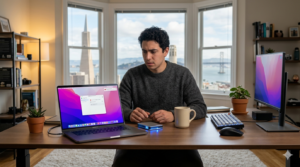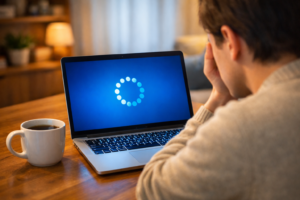

You’re browsing online, looking for a new recipe or checking the ferry schedule, and suddenly your computer slows to a crawl. Strange pop-ups appear. A new, unfamiliar icon is sitting on your desktop. You don’t remember installing anything, but there it is—a program you’ve never seen before.
This experience is unsettling for anyone, especially for home users in Seattle who depend on their computers for remote work, online classes, and daily life. Whether you’re working from a Capitol Hill apartment or managing family life in West Seattle, a secure and reliable computer is essential. Discovering a suspicious program can feel like finding a stranger in your home; you don’t know who they are, what they want, or how they got in.
The good news is that you can take control of the situation. Acting quickly and carefully is key to removing unwanted software and securing your digital space. It’s important not to panic or start deleting files randomly, as this can cause more harm than good. Instead, follow a clear, safe process to reclaim your computer.
What Is Suspicious Software?
Suspicious software, often called Potentially Unwanted Programs (PUPs), is any application that installs itself on your computer without your clear permission. Unlike a virus that actively tries to destroy data, this type of software often operates in a gray area. It might not be outright malicious, but it’s definitely not something you want.
So, how does it get there?
- Bundled with Downloads: This is the most common way. You download a free program you actually want, like a PDF reader or media player. Hidden in the installation process are pre-checked boxes that also approve the installation of toolbars, “system cleaners,” or ad-generating software.
- Malicious Ads: You might click on a deceptive online ad that says your computer is “infected” or “running slow.” These ads trick you into downloading a “fix” that is actually the problem itself.
- Phishing Links: An email or social media message contains a link that, when clicked, quietly installs a program in the background without any obvious signs.
These programs often disguise themselves as helpful utilities, making it hard to know if they are legitimate or not.
Why Suspicious Software Is Dangerous
Even if a program isn’t a full-blown virus, it can still pose significant risks to your privacy and your computer’s health.
- Data Theft: Many PUPs are designed to track your browsing habits, record your keystrokes, and collect personal information. This data can be sold to advertisers or used for more sinister purposes like identity theft.
- System Slowdowns: These programs run in the background, consuming memory and processing power. This can make your computer sluggish, cause crashes, and drain your laptop’s battery life.
- Privacy Breaches: Some suspicious software can hijack your webcam, listen through your microphone, or take screenshots of your screen without your knowledge.
- Gateway for Malware: A seemingly harmless toolbar can have security holes that provide an entry point for more dangerous threats like ransomware or spyware.
How to Identify Suspicious Software
These unwanted programs are designed to be sneaky, but they almost always leave clues. Be on the lookout for these common warning signs.
- Unusual Pop-ups: You see a sudden increase in advertisements, especially for products or services you’ve never searched for.
- New Icons on Your Desktop: A new program icon appears that you don’t recognize. It might have a generic name like “PC Optimizer Pro” or “WebSearch.”
- Changes in Your Browser: Your browser’s homepage or default search engine has been changed without your consent. You might also notice new, unfamiliar toolbars at the top of your browser.
- Poor Performance: Your computer takes much longer than usual to start up, open applications, or connect to the internet.
If you notice any of these signs, it’s a strong indication that an unwanted program has made itself at home on your device.
Steps to Remove Suspicious Software Safely
When you find something you don’t want, the first instinct is to drag it to the trash. With software, this is a mistake. Deleting files manually can break other programs or even damage your operating system. Follow this safer, more methodical approach.
1. Uninstall the Program Properly
Go to your computer’s official “Add or remove programs” (on Windows) or “Applications” folder (on Mac). Sort the list by “Date Installed” to see the most recent additions. If you see a program you don’t recognize from around the time your problems started, select it and use the “Uninstall” option.
2. Run a Full Antivirus and Anti-Malware Scan
After uninstalling the main program, you need to clean up any leftover files. Use a reputable antivirus or anti-malware program to run a deep, full system scan. This will find and quarantine any associated files that the uninstaller missed.
3. Check and Clean Your Browser Extensions
Suspicious software loves to hide in your web browser. Open the “Extensions” or “Add-ons” menu in Chrome, Firefox, or Edge. Look through the list and remove anything you did not intentionally install. When in doubt, remove it. You can always add it back later if you miss it.
4. Reset Your Browser Settings
If your homepage or search engine was hijacked, resetting your browser to its default settings is the easiest way to fix it. This option is available in the settings menu of all major browsers and will clean out any lingering changes.
How Remote Home Tech Support Can Help
The steps above can resolve many issues, but what if the program won’t uninstall? What if the pop-ups keep coming back? This often means the software has embedded itself deep within your system files, where it’s difficult and risky for a non-expert to remove.
This is where Zircon Technovatives offers a safe and effective solution. Our team provides remote home tech support specifically for Seattle residents. We can securely connect to your computer (with your permission) to diagnose and solve the problem without you having to leave your home.
Our experts can:
- Identify Stubborn Software: Use professional tools to locate and completely remove programs that resist normal uninstallation.
- Clean Up Your System: Find and delete hidden files, registry entries, and scripts associated with the unwanted software.
- Secure Your System: Ensure that no backdoors were left behind and that your computer’s security settings are configured to prevent future intrusions.
- Provide Clear Guidance: Explain what happened in simple terms and give you personalized tips to avoid similar issues.
Why Seattle Home Users Choose Remote Tech Support
In a city known for its tech-forward culture, convenience and efficiency are paramount. No one wants to waste an afternoon driving across town to a repair shop. Remote support is the modern solution.
- Convenience: Get expert help without unplugging a single cable or leaving your house. We work around your schedule.
- Expertise on Demand: You get a direct line to a professional who deals with these issues every day, avoiding the guesswork of online forums.
- Cost-Effective: By focusing directly on the problem, remote support often resolves issues faster and more affordably than traditional repair services.
- Peace of Mind: You can watch everything the technician does on your screen, ensuring complete transparency and control.
Suspicious Software on Your Computer? Let’s Remove It Safely
Discovering unauthorized software is alarming, but it’s a solvable problem. If you’ve tried the basic steps and are still struggling, don’t risk making the problem worse by digging into system files. Let a professional handle the cleanup.
Not Sure If It’s Safe? Talk to a Tech Expert.
Contact Zircon Technovatives today for a remote session to get your computer clean, secure, and running smoothly again.
Frequently Asked Questions (FAQs)
1. How do I know if suspicious software is installed on my computer?
The most common signs are unexpected pop-up ads, a slow computer, your browser homepage changing on its own, and new icons or toolbars that you did not install.
2. Can suspicious software steal my personal information?
Yes. Many unwanted programs, known as spyware or adware, are designed to track your online activity, log your keystrokes, and steal personal data for marketing or identity theft.
3. What’s the safest way to remove unauthorized programs?
Always use the official “Add or remove programs” feature in your operating system first. After that, run a full scan with a trusted antivirus or anti-malware tool to catch any remaining files. Avoid manually deleting files from system folders.
4. How can Zircon Technovatives help with suspicious software removal?
Our remote technicians use professional-grade tools to identify, quarantine, and completely remove all components of the suspicious software. We also scan for any other hidden threats and help secure your system to prevent reinfection.
5. Can remote tech support clean my computer safely?
Yes. Remote support is a highly secure and standard industry practice. You are in full control of the session and can see everything the technician does on your screen. You can disconnect at any time.
6. How do I prevent suspicious software from being installed again?
Be cautious when installing free software; always choose “Custom Install” and uncheck any boxes for bundled offers. Avoid clicking on pop-up ads that claim your computer is infected. Keep your operating system and antivirus software up to date.
7. Is it safe to delete suspicious files manually?
It is generally not recommended. Deleting the wrong file can cause other programs to stop working or even prevent your computer from starting up. It is much safer to use an uninstaller or let a professional handle the removal.