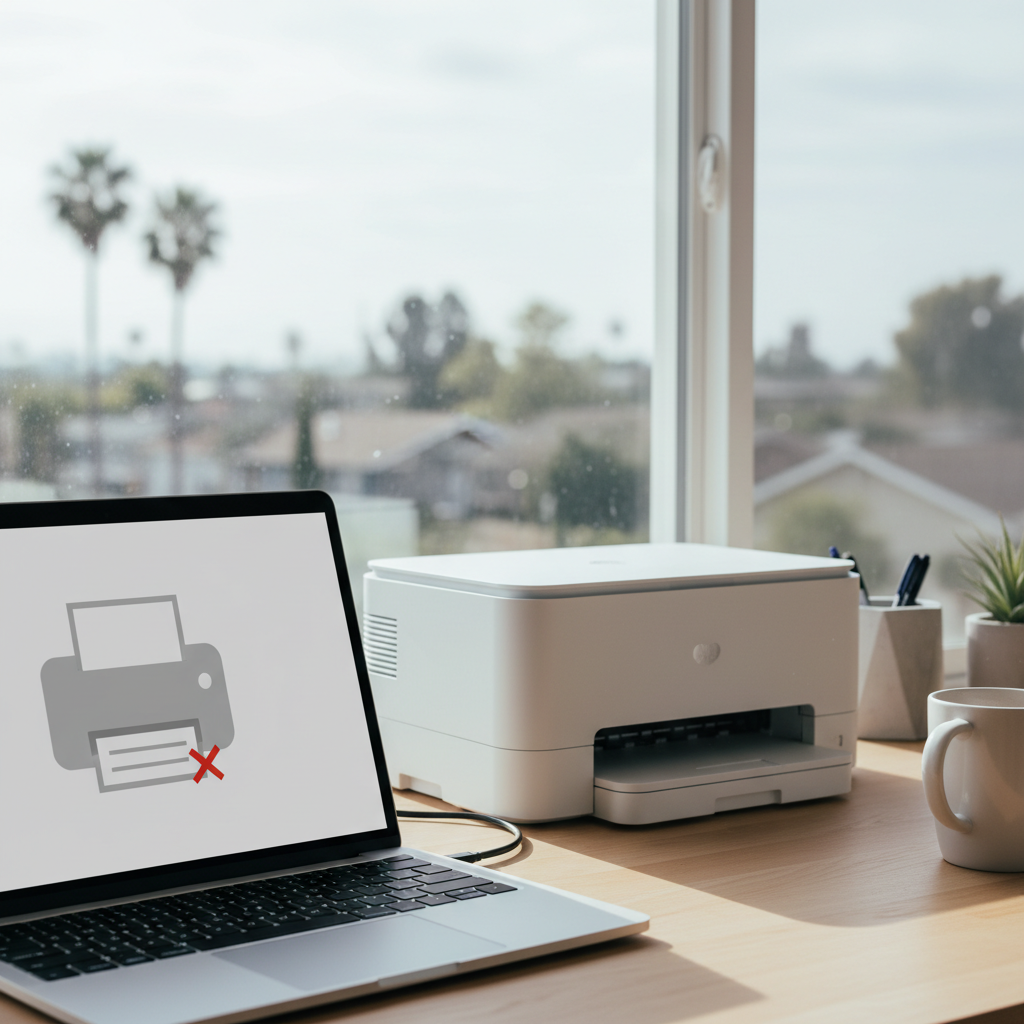
There are few tech frustrations quite as specific as needing to print something important, only to be met with that baffling “Printer Offline” message. You can see the printer. It’s on, lights are blinking, and it seems perfectly ready for action. Yet, your computer insists it’s unavailable. It’s a common headache for many home users across San Jose, turning a simple task like printing a school assignment or a work document into a real challenge.
If this scenario feels familiar, please know you’re not doing anything wrong. This is one of the most frequent issues people face with their home office tech. The good news is that it’s almost always solvable. This problem rarely means your printer is broken; it usually points to a simple communication breakdown between your devices. Let’s walk through why this happens and what you can do to fix it.
Why Printers Show Offline Even When On
When your computer reports that your printer is offline, it’s essentially saying it can’t communicate with it. The physical power being on doesn’t guarantee a digital connection. This disconnect can happen for several straightforward reasons, none of which require a degree in computer science to understand.
Here are the usual suspects:
- Network Connectivity Issues: This is the number one cause. Your printer and computer must be on the exact same Wi-Fi network to talk to each other. A recent router reboot, a password change, or even a temporary network glitch can sever this connection.
- Incorrect Printer Settings: Sometimes, your computer gets confused. It might be trying to send the print job to an old, uninstalled printer or to a phantom copy of your current one. A simple setting might be pointing it in the wrong direction.
- Outdated or Missing Drivers: A driver is a small piece of software that acts as a translator between your computer and your printer. If this driver is out of date, corrupted, or was never installed correctly, communication breaks down.
- Firewall or Security Software Blocking: Your computer’s security software is designed to block suspicious network activity. Occasionally, it can be a bit overzealous and mistakenly block your printer’s connection, flagging it as a potential threat.
Common Printer Offline Mistakes
Most of the time, the “offline” error stems from a small oversight during setup or daily use. These aren’t technical failures but simple missteps that are easy to make and, fortunately, easy to correct.
Here are some real-world mistakes that often lead to this issue:
- Forgetting to Check the Printer’s Network Connection: We check our computer’s Wi-Fi, but often forget the printer has its own connection. Many modern printers have a small screen or status light to confirm they are successfully connected to your home network.
- Using the Wrong Printer Driver: When you have multiple printers listed in your settings (sometimes with similar names like “HP DeskJet” and “HP DeskJet (Copy 1)”), it’s easy to send the job to the wrong one.
- Not Setting the Printer as the Default Device: If you don’t tell your computer which printer to use by default, it might try to send documents to a device that is no longer connected or was only used temporarily.
- Ignoring Firmware Updates: Just like your computer, your printer has its own internal software, called firmware. Manufacturers release updates to fix bugs and improve connectivity. Ignoring these updates can lead to performance problems.
Problems These Mistakes Can Cause
While a printer showing as offline might seem like a minor annoyance, it can quickly disrupt your day and lead to more significant frustrations. The consequences are often more about your time and peace of mind than any technical damage.
You might experience:
- Delayed Work or School Tasks: A sudden inability to print can derail your productivity, causing you to miss deadlines or show up unprepared.
- Wasted Time Troubleshooting: You can easily lose an hour or more clicking through settings, restarting devices, and searching for solutions online, often going in circles.
- Increased Frustration and Stress: Technology should make life easier. When it doesn’t work as expected, especially under pressure, it adds unnecessary stress to your day.
What You Can Fix Yourself (Safely)
Before you get too deep into troubleshooting, there are a few safe, beginner-friendly steps you can take. These actions resolve the majority of “printer offline” issues and don’t involve any risky changes to your system.
- Restart Everything (The “IT Crowd” Fix): It’s a cliché for a reason—it works. Turn off your printer, your computer, and your Wi-Fi router. Wait about a minute, then turn them back on in this order: router first (wait for it to connect to the internet), then your printer, and finally your computer. This clears out temporary glitches and re-establishes all the connections from scratch.
- Check the Printer’s Network Settings: Look at your printer’s built-in display screen. Navigate to the network or Wi-Fi settings menu. Ensure it shows that it’s connected to the same Wi-Fi network name (SSID) as your computer.
- Ensure the Correct Printer is Selected: On your computer, go to your printer settings (in Settings > Bluetooth & devices > Printers & scanners on Windows, or System Settings > Printers & Scanners on a Mac). You may see several printers listed. Make sure the one that is active and set as the default is the correct one.
- Run the Built-in Troubleshooting Tool: Both Windows and macOS have tools to diagnose printer problems.
- On Windows, right-click your printer in the settings menu and select “Run the troubleshooter.”
- On a Mac, the system often tries to diagnose issues automatically when you attempt to print.
These simple checks can often bring your printer back online.
When Remote Home Tech Support Is the Smarter Option
If you’ve tried the basics and the “offline” message persists, it’s probably time to stop the guesswork. Continuing to change random settings can sometimes make the problem worse. It’s smarter to seek professional help when the issue goes beyond a simple restart.
Consider remote tech support if:
- You’re stuck in a loop and the troubleshooting steps haven’t worked.
- You suspect the issue is with drivers or your network configuration.
- You are getting confusing error messages you don’t understand.
- You are worried about making things worse by changing advanced settings.
Be wary of downloading random “fix-all” tools from the internet. Many of these are ineffective or, in some cases, can contain malware. A professional technician can identify the root cause without resorting to risky software.
How Remote Home Tech Support Can Help
Remote tech support is a secure and convenient way to get expert help right where you are. With your permission, a technician connects to your computer over the internet to diagnose and fix the problem while you watch. You don’t have to unplug anything or leave your house.
A remote technician can assist with:
- Diagnosing and Fixing Network Connectivity Issues: We can pinpoint exactly why your printer isn’t communicating with your network and resolve the conflict.
- Installing or Updating Printer Drivers: We will find the correct, most recent driver for your specific printer model and operating system, and install it properly.
- Configuring Printer Settings: We can clear out old printer entries, set the correct device as your default, and ensure all settings are optimised.
- Providing Step-by-Step Guidance: We’ll explain what caused the problem in simple terms, empowering you to handle minor issues in the future.
Our support is provided remotely only, delivering a fast and efficient solution directly to your home in San Jose.
Why San Jose Home Users Choose Remote Tech Support
For families, students, and remote workers across San Jose, remote assistance has become the preferred method for resolving frustrating tech issues like the “printer offline” problem.
- No Need to Visit a Repair Shop: You save time and avoid the hassle of traffic and parking. Help is delivered directly to your screen.
- Step-by-Step Help from Home: You remain in control and can see everything the technician is doing, turning a frustrating moment into a learning opportunity.
- Clear Explanations Without Tech Jargon: We specialise in helping home users. We avoid confusing language and focus on clear, practical solutions.
- Cost-Effective Troubleshooting: Because we don’t have the overheads of a physical shop or travel time, we can offer professional support at an affordable price.
Printer Offline? Let’s Fix It Together
You deserve technology that just works. If your printer is causing you headaches, you don’t have to figure it out alone. Zircon Technovatives provides friendly, expert remote tech support for San Jose residents.
Get Remote Tech Support for Printer Issues
Let us handle the technical details so you can get back to what’s important. We can resolve your printer configuration and connection problems efficiently.
Need Help with Your Printer? Talk to a Tech Expert
Frequently Asked Questions (FAQs)
Why does my printer show offline even when it’s on?
This is typically a communication problem. The most common causes are a weak or lost Wi-Fi connection, outdated printer software (drivers), incorrect settings on your computer, or a firewall blocking the connection.
Can remote tech support fix printer offline issues?
Yes, absolutely. Since the problem is almost always software or network-related, it’s a perfect issue to solve remotely. A technician can securely connect to your computer to diagnose the cause and fix it directly.
How do I check if my printer is connected to Wi-Fi?
Most modern printers have a small LCD screen. You can use the buttons on the printer to navigate to its network settings menu. This menu should display the name of the Wi-Fi network it is connected to. Make sure this is the same network your computer is using.
Should I reinstall my printer drivers?
Reinstalling drivers can often fix the problem, but you need to ensure you are downloading the correct and latest version from the printer manufacturer’s official website. A remote technician can handle this process for you to ensure it’s done correctly.
Is it safe to update printer firmware?
Yes, it is generally safe and recommended. Firmware updates are released by manufacturers to fix bugs, patch security holes, and improve performance. You should only install firmware updates that come directly from the printer manufacturer’s official support website.
How long does remote printer support usually take?
Most “printer offline” issues can be diagnosed and fully resolved in a single remote session, often taking less than an hour. The exact duration depends on the root cause, such as whether software updates need to be downloaded and installed.