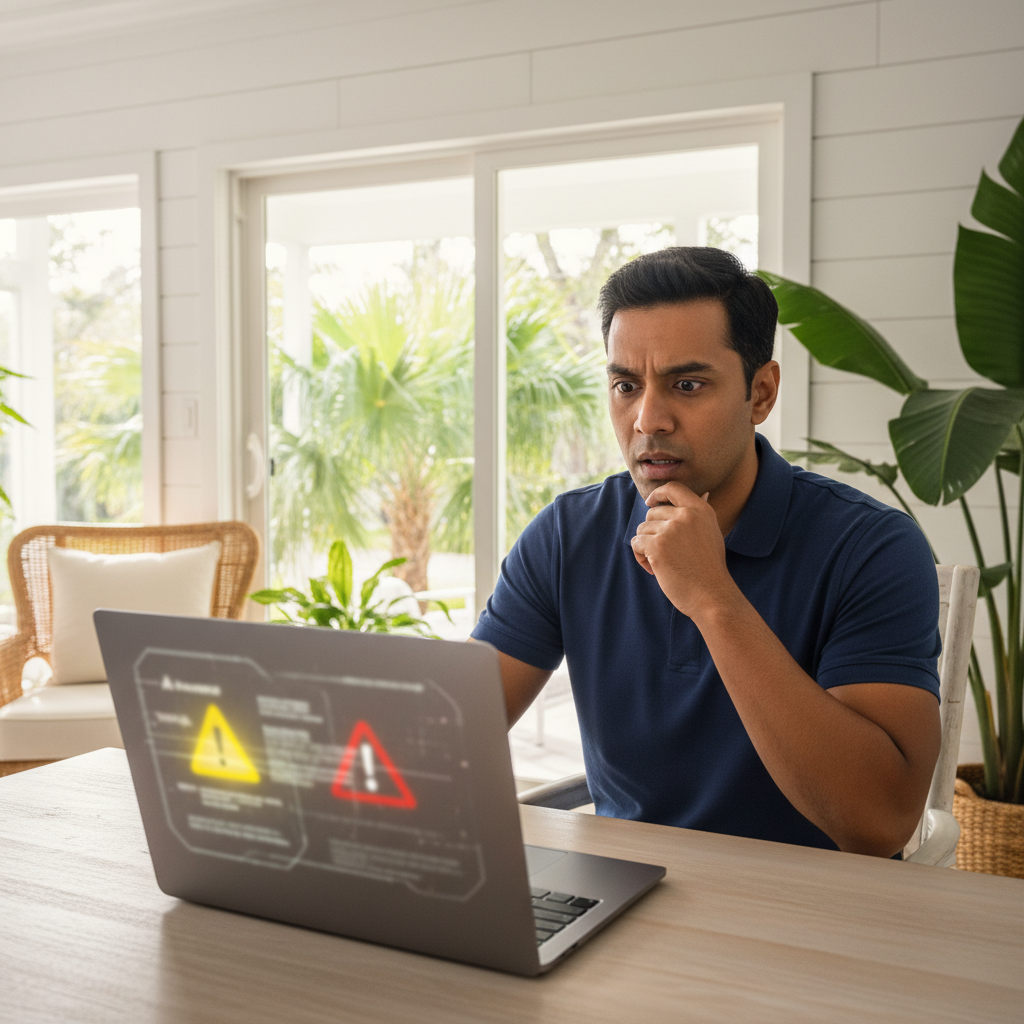
Receiving an unexpected alert from your bank or a payment service can be alarming. Your heart might skip a beat as you read a text or email about a login attempt or a recent transaction. For many home users in Florida who rely on their laptops for online banking, shopping, and paying bills, this experience immediately raises a scary question: Is my computer compromised?
That feeling of vulnerability is completely understandable. The good news is that these alerts don’t automatically mean your accounts have been breached or your money is gone. Often, they are precautionary measures from financial institutions designed to protect you. However, they are signals that should never be ignored. It’s crucial to understand what they mean and whether your laptop’s security might be at risk.
What These Bank or Payment Alerts Usually Mean
Financial institutions use automated systems to monitor for activity that falls outside your usual patterns. When they spot something unusual, they send an alert. It’s their way of asking, “Was this you?”
Here are some common alerts you might receive:
- Login Attempt Notifications: You might get a message if someone tries to log into your account from a new device or a different location.
- Unrecognized Device Alerts: Banks often “remember” the devices you normally use. Logging in from a new laptop, phone, or even a different web browser can trigger this warning.
- Payment Verification Messages: For certain online purchases, especially large ones or those with a new merchant, you may receive a code via text or email that you must enter to approve the transaction.
- Suspicious Activity Warnings: This is a broader category that could be triggered by multiple rapid login attempts, a transaction in a different country, or other activities that don’t match your history.
It’s important to distinguish between a precautionary alert and confirmed fraud. An alert is a check-in. Confirmed fraud means an unauthorized transaction has occurred. By responding to alerts correctly, you can often prevent fraud before it happens.
Could Your Home Laptop Be Compromised?
If the alert points to activity you don’t recognize, it’s time to consider if your laptop could be the source of the problem. A compromised system can expose your financial information to bad actors without you even realizing it. The issue isn’t always a dramatic “hack” like you see in movies; often, it’s something much more subtle.
Here are some realistic possibilities for how your online banking security issues might start:
- Malware or Spyware: Malicious software can secretly record your keystrokes (keylogging) to steal passwords or capture screenshots of your financial activity.
- Phishing Links or Fake Emails: You might have accidentally clicked a link in an email that looked like it was from your bank or a popular retailer. These fake sites are designed to trick you into entering your login credentials.
- Browser Extensions Harvesting Data: Some browser add-ons, even those that seem useful, can be designed to collect and sell your browsing data or login information.
- Saved Passwords in an Insecure Browser: If your browser itself is compromised by malware, any passwords you have saved for convenience could be at risk.
- Public Wi-Fi Exposure: Using unsecured public Wi-Fi (like at a café or airport) without a VPN can potentially expose your online activity to others on the same network.
- Outdated System Security: An operating system or antivirus program that hasn’t been updated may have security holes that criminals know how to exploit.
These are common entry points that can lead to the laptop compromised signs many users worry about.
Early Warning Signs Your Laptop May Be at Risk
Besides bank alerts, your laptop itself might be showing symptoms of a security problem. These red flags can appear before you ever receive a financial warning.
- Browser Redirects: Your web browser takes you to websites you didn’t intend to visit.
- Unknown Apps or Extensions: You notice new applications installed on your computer or extensions in your browser that you don’t remember adding.
- Slower Performance: A sudden and significant drop in your laptop’s speed can be a sign that malware is running in the background and consuming system resources.
- Frequent Pop-ups: You are bombarded with pop-up ads, even when you’re not browsing websites that typically have them.
- Account Logouts or Password Resets: You find yourself logged out of accounts like email or social media, or you receive notifications that your password was changed without your doing.
If you’re noticing any of these issues, it’s a strong indicator that your system needs a professional security check.
Immediate Steps to Take (Safe for Home Users)
If you receive a suspicious bank alert or notice the warning signs above, it’s important to act calmly and methodically. Your first priority is to secure your accounts.
Here are safe actions you can take right away:
- Do Not Click Links in the Alert: If you receive a suspicious email or text, do not click any links or call any phone numbers provided. Instead, go directly to your bank’s official website by typing the address into your browser or use their official app.
- Secure Your Financial Accounts: Log into your bank and payment accounts (using a trusted device, like your smartphone’s banking app, if you suspect your laptop is compromised). Check for any unauthorized transactions.
- Change Your Passwords: Immediately change the password for the account that sent the alert. If you use that same password for other accounts (a common but risky practice), change those as well. Use a strong, unique password for each account.
- Enable Multi-Factor Authentication (MFA): If you haven’t already, turn on MFA (also called two-factor authentication or 2FA) for all your financial and email accounts. This adds a crucial layer of security by requiring a second form of verification, like a code sent to your phone.
- Pause Online Transactions: Until you are confident your system is secure, avoid making any further online purchases or logging into sensitive accounts on the potentially compromised laptop.
Avoid the temptation to download unknown “security” tools or follow complex guides that tell you to edit system files. These actions can be risky and may make the problem worse.
How Remote Home Tech Support Can Help
Figuring out if your laptop is truly compromised requires technical expertise. You don’t have to solve this puzzle alone. With remote tech support, a security-aware technician can securely access your computer (with your permission) to investigate the issue from top to bottom.
Our remote home tech support service helps by:
- Checking for Malware or Spyware: We use professional-grade tools to perform deep scans of your system to find and remove any malicious software that standard antivirus programs might miss.
- Reviewing Browser and System Security: We’ll examine your browser extensions, security settings, and operating system configurations to identify and close any vulnerabilities.
- Removing Unsafe Software and Extensions: Our technicians can safely identify and uninstall programs or add-ons that pose a security risk.
- Helping Secure Your Accounts: We can guide you through the process of securing your email, banking, and payment accounts and ensure your security settings are properly configured.
All our support is delivered remotely, meaning you get expert help without ever having to leave your Florida home.
Why Florida Home Users Choose Remote Tech Support
For families, seniors, and remote workers across Florida, remote support is a practical and effective way to handle digital security concerns.
- Convenient Help from Home: Your security issues can be addressed while you are in the comfort of your home.
- No Travel or Device Drop-Offs: Your laptop stays with you. There’s no need to unplug it and take it to a store.
- Guided, Step-by-Step Assistance: Our technicians communicate clearly, explaining what they are doing and why, so you understand how your system is being secured.
- Cost-Effective Security Troubleshooting: Remote service is an efficient and affordable way to get a professional security assessment and cleanup.
Don’t let the anxiety of a potential security breach linger. Getting a clear answer can provide peace of mind and protect your financial information.
Concerned About Your Laptop’s Security? Talk to a Tech Expert
If you’ve received bank or payment alerts after using your home computer, let us help you determine if your system is secure.
Get Remote Home Tech Support for Potential Security Issues
Frequently Asked Questions (FAQs)
1. Do bank alerts always mean my laptop is hacked?
Not always. Banks often send alerts for legitimate reasons, like when you log in from a new device or location. However, if the alert describes an action you did not take, it’s a serious warning sign that your account or device could be compromised and should be investigated.
2. Can malware cause payment alerts?
Yes. Certain types of malware, like spyware or keyloggers, can steal your credit card information or banking credentials. When criminals use this stolen information, it can trigger suspicious activity or payment alerts from your bank.
3. Is it safe to continue using my laptop after receiving alerts?
If you suspect your laptop is compromised, it is best to avoid using it for any sensitive activities like online banking, shopping, or entering passwords until it has been checked by a professional. Use a different, trusted device (like your smartphone) for these tasks in the meantime.
4. Can remote tech support check for security issues?
Absolutely. A remote technician can securely connect to your laptop to run comprehensive scans for malware, check system security settings, identify unsafe programs, and ensure your browser is secure. This is an effective way to diagnose and resolve most software-based security threats.
5. What should I do first after receiving a bank alert?
First, verify the alert is legitimate by contacting your bank through their official website or app—not by using links in the alert message. Second, change your password for that account immediately and enable multi-factor authentication (MFA) if you haven’t already.
6. Can browser extensions cause security risks?
Yes. While many extensions are safe, some are created to spy on your activity or steal data. It is crucial to only install extensions from reputable developers and to periodically review and remove any you no longer need or trust.
7. How long does a remote security check usually take?
A thorough remote security check and cleanup typically takes one to three hours. The duration depends on the complexity of the potential infection and the overall condition of the computer. The technician can provide a more accurate time estimate after an initial assessment.