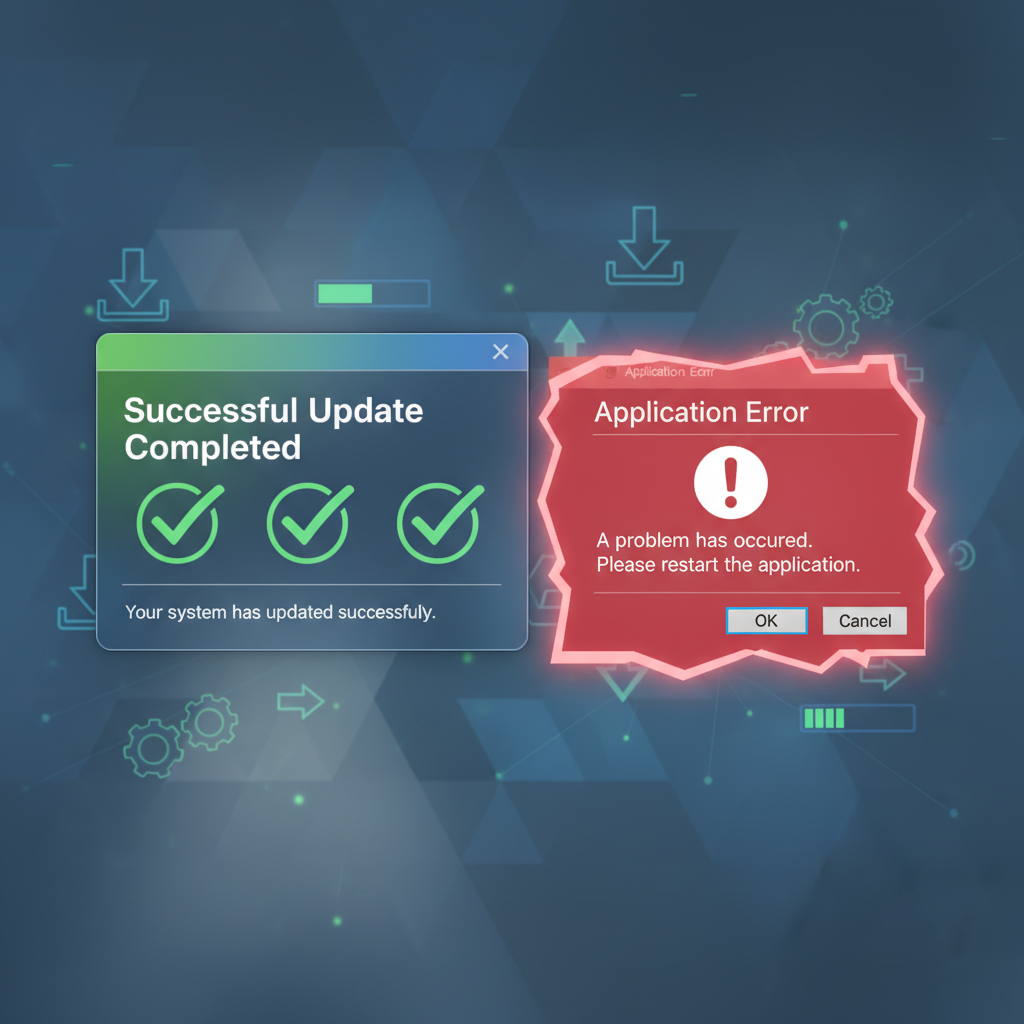
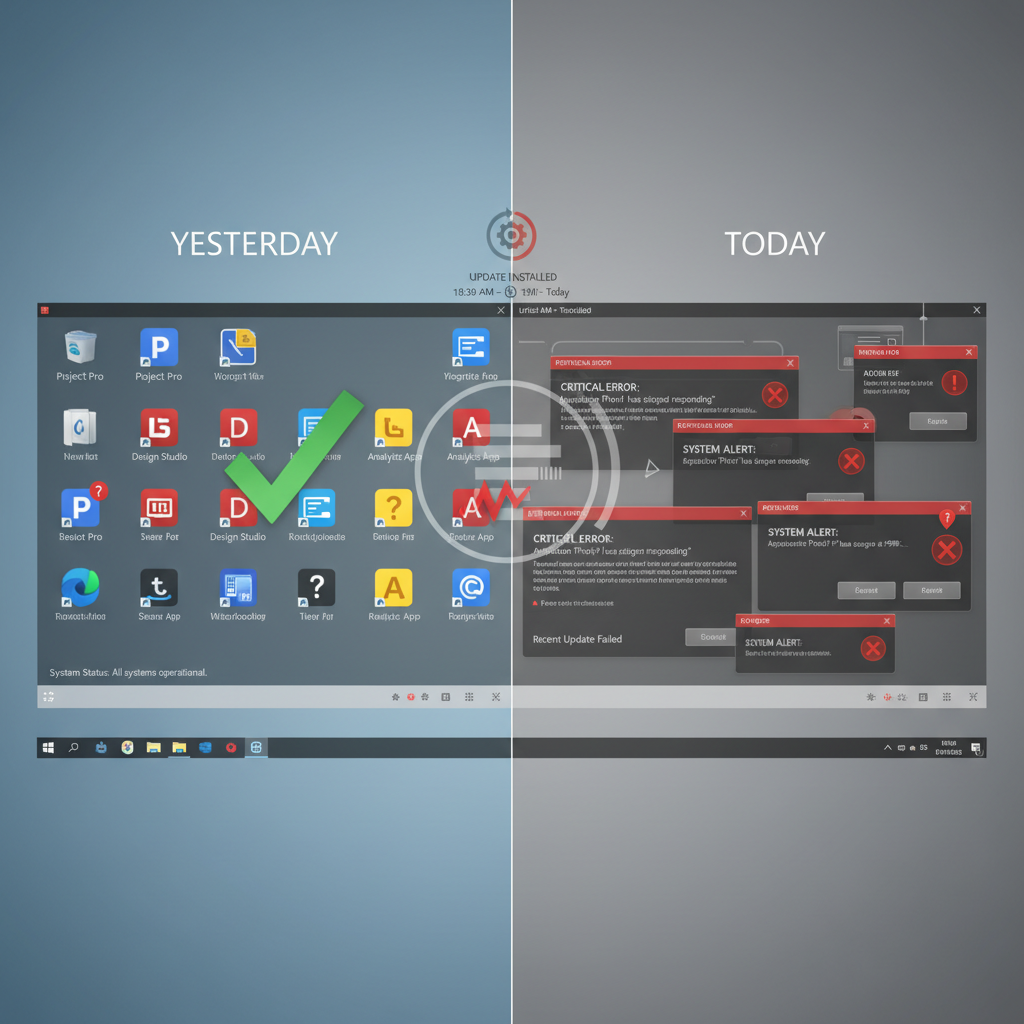
It is the most baffling feeling in the world. You are sitting in your home office in the Heights, or maybe you are at your kitchen table in Sugar Land trying to finish a school project. You double-click the same icon you use every single day—Microsoft Word, Adobe Reader, or your favorite photo editor. Yesterday, it opened instantly. Today, nothing happens. Or worse, an ominous error box pops up filled with numbers and jargon you don’t understand.
For home users support across the Greater Houston area, relying on technology is not optional anymore. From remote work tasks to managing household finances or organizing family photos, our lives are digital. When the tools we rely on suddenly break without warning, it feels like the ground has shifted beneath our feet. “I didn’t change anything!” is the common refrain. And you likely didn’t. Yet, here you are, stuck with a deadline looming and a program that refuses to cooperate.
If you are staring at a frozen screen or a crashing app, don’t panic. This phenomenon is frustratingly common, but it is rarely permanent. Let’s look at why software suddenly stops working and how you can get back on track.
Common Signs Software Is Not Working

Sometimes software failure is dramatic, but other times it is subtle. Recognizing the signs early can help you decide whether it is a quick fix or if you need professional help.
- Failure to Launch: You click the icon, the loading circle spins for a moment, and then… nothing. The app never opens.
- Immediate Crashes: The program opens for a split second and then closes itself immediately.
- Cryptic Error Messages: You receive pop-ups saying “Fatal Error,” “Missing DLL,” or “Runtime Exception.”
- Unresponsive Features: The software opens, but you can’t click any buttons, save files, or print. It is effectively frozen.
- Slow Performance: A task that usually takes seconds now takes minutes, or the screen lags heavily while typing.
Why Software Stops Working Overnight
How can something break when you were sleeping? The truth is, your computer does a lot of work when you aren’t looking. The software environment is constantly changing, and sometimes, those changes conflict with one another.
Here are the most common reasons Houston home users experience sudden software failure:
1. Silent System Updates
Windows and macOS often download and install updates in the background. While these updates are good for security, they can change critical system files that your older software relies on. If an update moves a file your program needs, the program breaks.
2. Expired Licenses or Subscriptions
Many modern programs, like Microsoft Office or antivirus software, run on a subscription model. If your credit card expired or the renewal didn’t process, the software might revert to a “read-only” mode or lock you out entirely without a clear warning.
3. Corrupted Configuration Files
Every time you close a program, it saves a tiny file remembering your settings. If your computer shut down unexpectedly (like during a power flicker from a Houston storm) while that file was saving, the file can get corrupted. The next time you try to open the app, it reads the garbled file and crashes.
4. Compatibility Issues
Did you install a new printer or a new webcam yesterday? Sometimes, installing drivers for new hardware can interfere with existing software.
5. Antivirus Over-Enthusiasm
Sometimes, your security software gets a definition update that makes it suspicious of perfectly safe programs. It might silently block your accounting software or photo editor, thinking it is a threat.
Safe Fixes You Can Try at Home
Before you start worrying about data loss, there are several safe, non-invasive steps you can take to try and revive your software.
Restart Your Computer
It is the golden rule of tech support for a reason. A full restart clears out the computer’s temporary memory (RAM) and forces all background processes to start fresh. This often resolves minor glitches caused by apps getting “stuck.”
Check for Application Updates
If your operating system updated but your app didn’t, they might be speaking different languages.
- Open the app (if possible) and look for Help > Check for Updates.
- Check the Microsoft Store or Mac App Store to see if a new version is available.
Verify Your Subscription Status
Log into your account online for the software in question (e.g., your Adobe or Microsoft account). Ensure your payment method is current and your subscription is active.
Check System Requirements
This is especially relevant if you just upgraded your operating system (like moving to Windows 11). Check the software developer’s website to make sure your version of the program is actually supported on your current operating system.
When Basic Fixes Don’t Work
If you have restarted, updated, and checked your account, but the software still won’t run, the issue is likely deeper.
You might be facing a corrupted registry entry, a damaged installation path, or a conflict between two different programs fighting for the same resources.
A Word of Caution: You will find many guides online telling you to download “cleaner” tools, edit the Windows Registry manually, or type complex commands into a terminal. Please be careful. These actions carry significant risk. Deleting the wrong registry key can render your computer unbootable. Downloading random “fix-it” tools is a common way to accidentally infect your machine with malware.
How Remote Home Tech Support Can Help
Instead of risking your computer’s health with trial-and-error fixes, consider professional remote assistance. At Zircon Technovatives, we specialize in helping home users in Houston solve these exact mysteries.
Because we are a remote-only support service, we can help you immediately, without you needing to disconnect your desktop or wait for a technician to drive across town in I-45 traffic.
Here is how we handle stubborn software issues:
- Remote Diagnosis: We review error logs that aren’t visible to the average user to pinpoint exactly why the crash is happening.
- Safe Repairs: We use professional tools to repair installation files without losing your personal data or documents.
- Compatibility Checks: We verify that all your drivers and software versions are playing nicely together.
- Performance Optimization: Once the software is working, we ensure it is running efficiently so it doesn’t happen again next week.
Why Houston Home Users Choose Remote Tech Support
Houston is a sprawling city. Driving a computer to a repair shop in rush hour is a headache nobody wants. Remote support fits your life better.
- Convenience: You get expert help while sitting in your own chair.
- Transparency: You can watch us work on your screen. We explain what we are doing, so you learn a little bit about your own technology in the process.
- Cost-Effective: You pay for the solution, not for overhead or travel time.
- Focused Expertise: We deal with home software issues every single day. We have likely seen—and fixed—your specific problem before.
Software Not Working? Let’s Fix It Together
You rely on your computer to handle your life’s work. When software fails, it stops your progress. Don’t let a glitch turn into a week-long headache.
Need Help with Software? Talk to a Tech Expert
Contact Zircon Technovatives today. We will get your programs running smoothly again so you can get back to what matters.
Frequently Asked Questions (FAQs)
Why did my software stop working overnight?
The most common culprits are automatic background updates (either to the OS or the app itself), corrupted configuration files from an improper shutdown, or expired subscription licenses.
Can a Windows or macOS update break my software?
Yes. Major system updates often change how the computer handles files and security. If your software hasn’t been updated to match the new system requirements, it may crash or fail to open.
How do I check if my software license is still valid?
Visit the software manufacturer’s website and sign in to your user account. Look for sections labeled “Subscriptions,” “Billing,” or “My Products” to see the status of your license.
Can remote tech support fix software compatibility issues?
Absolutely. We can often adjust compatibility settings, update drivers, or install patches that allow older software to run on newer systems, or advise you if an upgrade is strictly necessary.
Is my computer too old to run the latest software?
Possibly. Every piece of software has “System Requirements.” If your computer’s hardware (RAM, processor, or storage) doesn’t meet these minimums, the software will crash or run very slowly. We can check this for you.
How do I repair corrupted software files?
Many programs have a built-in “Repair” function found in the Windows “Add or Remove Programs” menu. However, if this fails, a complete uninstall and clean reinstall is usually required, which is best done by a professional to ensure no data is lost.
How long does remote troubleshooting for software issues usually take?
Most single-software issues can be diagnosed and resolved within 30 to 60 minutes. Complex system-wide conflicts may take slightly longer, but we value your time and work efficiently.