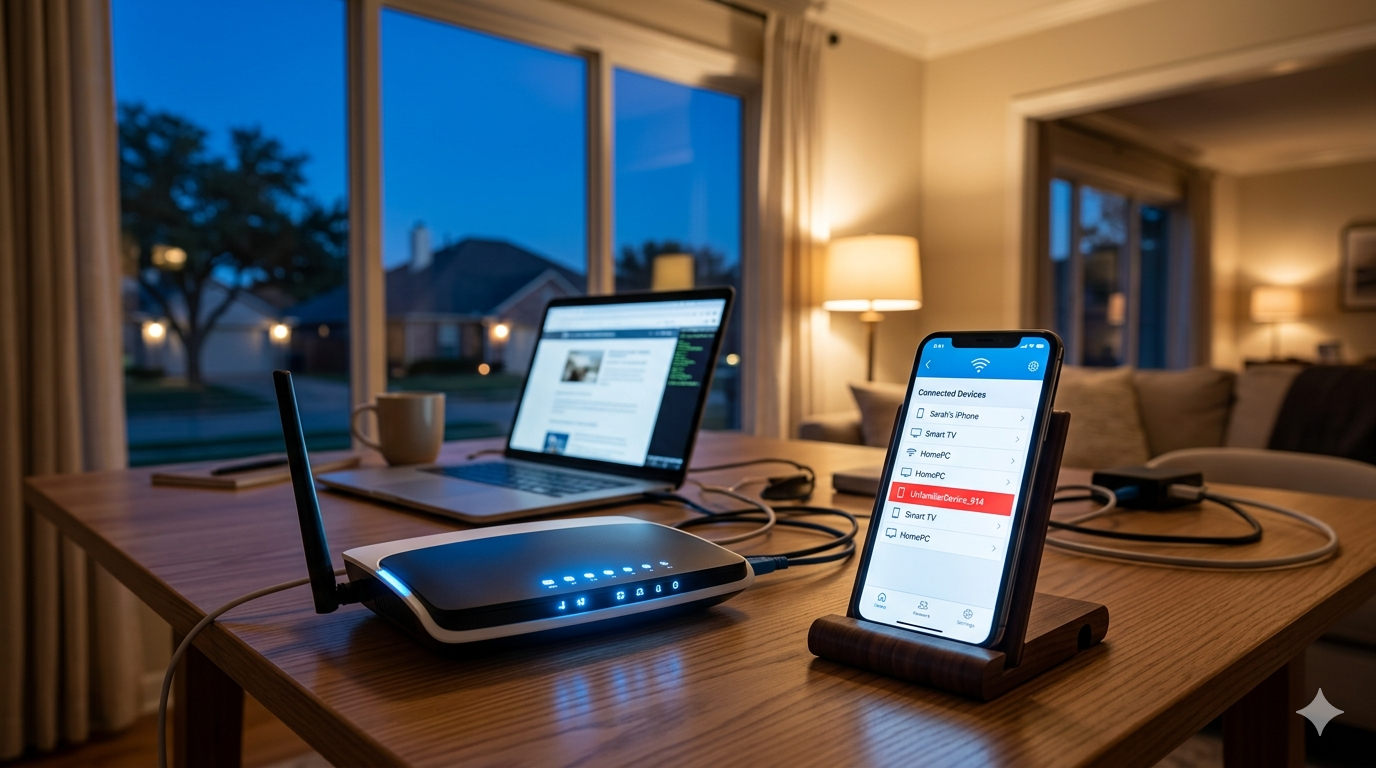
It started on a Tuesday night in Lakewood. A Dallas homeowner settled in to stream a movie on Spectrum, only to find the connection crawling at a fraction of its usual speed. Frustrated, she logged into her router and pulled up the connected devices list. Four devices she recognized — her laptop, her husband’s phone, the smart TV, and the kids’ iPad. But the list showed six. Two devices with unfamiliar names were sitting quietly on her network, using her bandwidth and potentially doing a lot more than just streaming.
If this sounds familiar, you’re not alone. Unauthorized WiFi access in Dallas homes is more common than most people realize, and the consequences go beyond a slow Netflix connection. Someone on your network can potentially see the other devices connected to it, intercept unencrypted traffic, and use your internet connection for activities you’d never want traced back to your address.
The good news? Finding and removing them is straightforward — and locking them out permanently takes less than 20 minutes.
How Strangers Get Onto Your Home WiFi Network
Most people assume their WiFi is private by default. It’s not — it’s only as secure as the password protecting it.
The most common way strangers access a home network is through weak or default passwords. Many Dallas homeowners set up their Spectrum or AT&T router years ago and never changed the password from whatever the technician left it as. Default router passwords are often printed on the device itself, and lists of common default passwords for popular router models are freely available online.
The second route is password sharing that got out of hand. You gave the password to a guest two years ago, they gave it to someone else, and now you have no idea who has it. WiFi passwords don’t expire, and they don’t stop working just because you’ve forgotten you shared them.
Finally, some technically capable individuals use freely available tools to crack weak WiFi passwords, particularly those using outdated WEP encryption or simple WPA2 passwords shorter than 12 characters. If your password is something like “dallas2019” or your street name, it’s far more vulnerable than you’d think.
Dallas homes tend to have strong WiFi signals that reach well beyond the front door — into the driveway, the street, and neighboring properties. That signal range is exactly the attack surface an unauthorized user needs.
Signs Someone Is Using Your Dallas Home WiFi
Your internet connection will usually tell you something is wrong before you think to check. Here are the clearest warning signs:
Unexplained slowdowns at consistent times. If your connection slows every evening between 7pm and 10pm, it could be peak-hour congestion on Spectrum’s network — but it could also be someone in your neighborhood using your bandwidth during their downtime.
Devices you don’t recognize on your router’s list. This is the most direct sign. Log into your router and look at the connected device list. Anything you can’t identify by name or purpose is worth investigating.
Router lights blinking when nothing in your home is active. If everyone’s devices are off or asleep and your router’s activity light is still flickering consistently, data is moving through your network from somewhere.
Higher than expected data usage. Check your monthly data usage in your Spectrum or AT&T account dashboard. If you’re consistently hitting your data cap but your household habits haven’t changed, someone else may be contributing to that usage.
Devices disappearing from smart home apps. When an intruder’s device competes for network resources, your smart home gadgets — cameras, thermostats, speakers — can become unresponsive or drop offline temporarily.
Any one of these signs alone might have an innocent explanation. Two or more together warrant a proper investigation of your network.
How to Find and Remove Unknown Devices From Your Network
This is the part most Dallas homeowners assume requires a technician. It doesn’t. Here’s exactly what to do.
Step 1 — Log into your router admin panel. Open any browser and type 192.168.1.1 or 192.168.0.1 into the address bar. This opens your router’s admin page. The login credentials are usually printed on a sticker on the back of your router — look for “Admin” and “Password” labels. Once in, navigate to a section called “Connected Devices,” “Device List,” or “DHCP Clients.”
Step 2 — Identify every device on the list. Go through each entry methodically. Most devices show a name (like “John’s iPhone” or “SAMSUNG-SM-G998”) and a MAC address — a unique hardware identifier. Cross-reference each one against your household devices. Your phone, your partner’s phone, laptops, tablets, smart TVs, game consoles, smart speakers, printers, and any smart home devices should all be accounted for. Anything left over is suspicious.
Step 3 — Change your WiFi password immediately. This is the fastest and most effective way to remove unknown devices on WiFi. Go to your router’s Wireless Settings section, find the password field, and set a new password — at least 14 characters, mixing letters, numbers, and symbols. The moment you save the new password, every device on the network — including the unauthorized ones — gets disconnected.
Step 4 — Upgrade your security protocol. While you’re in the router settings, check your WiFi security type. It should say WPA3 if your router supports it, or WPA2 at minimum. If it shows WEP or “Open,” change it immediately — these offer almost no protection for your Dallas home WiFi security.
Step 5 — Enable MAC address filtering (optional but effective). This feature lets you create a whitelist of approved devices. Only devices whose MAC addresses appear on your list can connect, even with the correct password. It takes 20 minutes to set up but makes unauthorized access significantly harder going forward.
Step 6 — Reconnect your own devices. Go room by room and reconnect each of your devices to the new WiFi password. Yes, it takes a few minutes — but you now know with certainty that every device on your network belongs there.
How Zircon Technovatives Helps Dallas Homeowners Secure Their WiFi
Setting up router security correctly isn’t complicated, but it’s easy to miss a step — especially when router admin panels vary so much between Spectrum, AT&T Fiber, and Frontier setups common across Dallas neighborhoods.
That’s where Zircon Technovatives comes in. We provide 100% remote home IT support for Dallas homeowners — no visit required, no waiting for a technician. Through a secure remote session, our certified technicians can walk through your exact router model and settings with you, identify all unknown devices, help you configure WPA3 encryption, set up MAC address filtering, and make sure your WiFi security is solid from top to bottom.
We also check whether any of the unauthorized devices were on your network long enough to warrant further investigation — looking at whether any of your other connected devices show signs of compromise.
If your home WiFi security in Dallas feels like a gap you’ve been meaning to close, now is a good time to do it. Chat with us to get started, or get a free IT audit and we’ll tell you exactly where your home network stands.