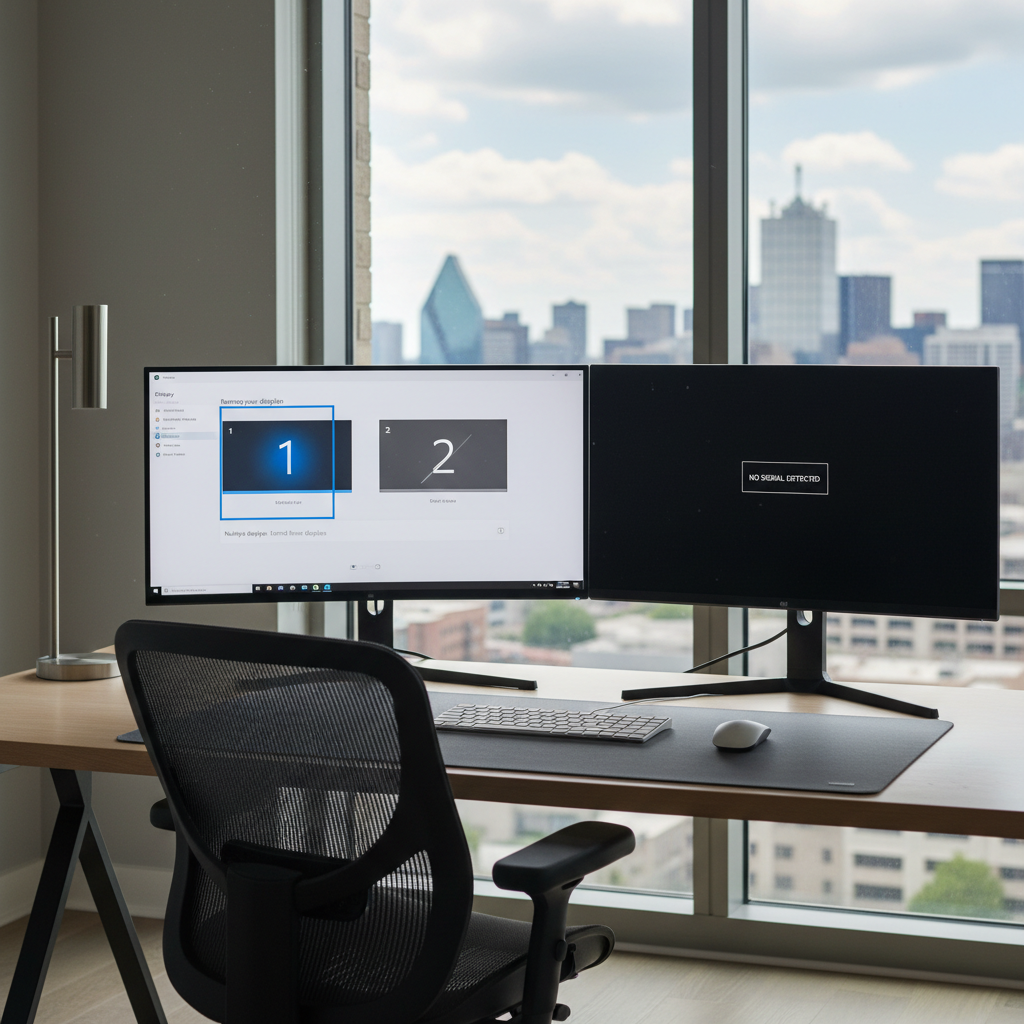
There is nothing quite like the productivity boost of a dual-monitor setup. Whether you are a remote worker managing spreadsheets, a student researching for a term paper, or a gamer looking for an immersive experience, having that second screen transforms how you use your computer. But when you plug everything in and that second monitor stays dark, the frustration is instant. You have the cables, the space, and the need—but your PC just won’t cooperate.
For home users across Dallas, this scenario is all too common. You are not alone if you are staring at a “No Signal” message or a completely black screen. The good news is that second monitor detection issues are rarely a sign of broken hardware. In most cases, it is a simple matter of configuration, a loose connection, or a software conflict that can be resolved with a bit of patience and the right steps.
This guide is designed to help you troubleshoot these issues calmly and logically. We will walk through why this happens, what you can check safely on your own, and when it might be time to call in remote support to get your home office back up and running.
Common Signs of Second Monitor Detection Issues
When we say a second monitor isn’t being “detected,” it can manifest in a few different ways. Identifying exactly what is happening is the first step toward finding a solution.
You might be experiencing one of the following scenarios:
- The “No Signal” Message: Your second monitor powers on, but floats a box saying “No Signal” or “Check Video Cable” before going into sleep mode. This means the monitor is working, but it’s not receiving data from the PC.
- The Screen Remains Black: The power light might be on (often amber or orange instead of green or blue), but the screen itself stays completely black, showing no signs of life.
- Monitor Not Listed in Settings: When you go into your Windows display settings to arrange your screens, only one rectangle (your main screen) appears. The system acts as if the second device doesn’t exist.
- Unable to Extend or Duplicate: You might see the monitor listed, but when you try to switch to “Extend these displays,” the setting reverts instantly, or you get an error message.
Why Second Monitors Fail to Be Detected on Home PCs
Understanding why your second screen isn’t working can take the mystery out of the problem. It is rarely just “bad luck.” There is usually a specific reason the communication between your computer and the monitor has failed.
Here are the most common culprits for Dallas home users:
Cable or Adapter Compatibility Issues
This is the number one cause. Not all cables are created equal. Using an old HDMI cable for a high-resolution monitor, or using a faulty adapter (like a cheap USB-C to HDMI hub), can prevent the signal from getting through.
Incorrect Monitor Input Source
Monitors are like TVs; they have multiple “channels” or inputs (HDMI 1, HDMI 2, DisplayPort). If your cable is plugged into HDMI 1 but the monitor is looking for a signal on DisplayPort, the screen will remain black.
Graphics Driver Problems
Your computer’s graphics card needs a piece of software called a driver to talk to your monitors. If this driver is outdated, corrupted by a recent update, or missing entirely, your PC might lose the ability to manage dual screens.
Windows Update Conflicts
We have all been there—your computer works perfectly, Windows installs an update overnight, and the next morning something is broken. Updates can sometimes reset display settings or install generic drivers that don’t support multi-monitor setups well.
Display Settings Misconfiguration
Sometimes, the monitor is actually detected, but Windows has disabled it. It might be set to “Show only on 1,” making it appear as though the second screen is broken when it just hasn’t been told to wake up.
Graphics Card or Port Limitations
Some older laptops or entry-level desktop PCs have hardware limitations. They might have a physical HDMI port, but the internal graphics card may only support one display at a time, or the port might be for input rather than output (common on All-in-One PCs).
Step-by-Step Checks You Can Safely Try at Home
Before you worry about complex repairs, there are several safe, beginner-friendly troubleshooting steps you can try. These checks solve a surprising number of monitor detection problems.
1. Verify Cables and Ports
Start with the basics. Unplug the video cable from both the monitor and the PC. Inspect the ends for any bent pins or damage. Plug them back in firmly—you should feel a solid connection. If you are using a desktop PC with a dedicated graphics card, ensure you are plugging the monitor into the card’s horizontal slots, not the vertical ones near the top (which are for the motherboard and often disabled).
2. Restart the PC and Monitor
It is the classic advice for a reason. A full restart clears temporary memory and forces Windows to re-scan for hardware. Turn off your PC. Then, unplug the power cable from your second monitor, wait 30 seconds, and plug it back in. Turn the monitor on, then boot up your PC. This “power cycle” can often wake up a stubborn connection.
3. Check Display Detection Settings
Right-click on an empty area of your desktop and select Display settings. Look for the “Multiple displays” section.
- Click the Detect button. (If Windows finds it, great!)
- If you see two boxes representing your screens but one is greyed out, click it and look for a drop-down menu that says “Disconnect this display” or “Show only on 1.” Change it to “Extend these displays.”
4. Try a Different Cable or Port
If you have a spare HDMI or DisplayPort cable lying around (perhaps from a TV or game console), swap it out. If the new cable works, you know the old one was faulty. Similarly, if your monitor and PC have multiple ports (e.g., trying the HDMI port instead of the DisplayPort), try switching the connection type to see if a specific port is the issue.
5. Update Graphics Drivers Using Official Sources
Outdated drivers are a frequent headache.
- Right-click the Start button and select Device Manager.
- Expand the section called Display adapters.
- Right-click your graphics card (e.g., NVIDIA, AMD, or Intel) and select Update driver.
- Choose “Search automatically for drivers.”
- Note: For the best results, it is often better to visit the manufacturer’s website directly rather than relying on Windows to find the update, but the automatic search is a safe first step.
⚠️ Important: Please avoid entering your computer’s BIOS menu or editing registry keys unless you are fully confident. These areas control the core functions of your PC, and accidental changes here can cause startup issues.
When Troubleshooting Doesn’t Solve the Issue
You have swapped cables, restarted three times, and checked every setting you can find, but that second screen is still dark. It is understandably frustrating.
When the basic checks don’t work, it usually indicates a deeper conflict. This could be a specific driver version that isn’t playing nice with your current version of Windows, a subtle incompatibility with a docking station, or a power distribution issue within the PC itself.
At this stage, continuing to try random fixes found on forums can be risky. Downloading “driver fixer” tools from third-party websites often leads to malware or bloatware that slows down your system. Changing advanced system settings without a clear diagnosis can also disrupt your primary monitor, leaving you with no screen at all.
How Remote Home Tech Support Can Help
If you are stuck, professional help is the safest path forward. Remote home tech support is designed exactly for these kinds of software and configuration puzzles. You don’t need to unplug your setup or drive to a repair shop in Dallas traffic.
A remote technician can securely connect to your computer to:
- Diagnose Why the Second Monitor Isn’t Detected: We can look at the system logs and device manager details that are often confusing to home users, identifying exactly where the communication is breaking down.
- Fix Driver and Display Configuration Issues: Instead of guessing which driver is correct, we locate the precise manufacturer-approved software for your specific hardware and install it correctly.
- Optimize Dual-Monitor Setup: Once the screen is on, we ensure the resolution, refresh rate, and alignment are correct so your mouse moves smoothly between screens.
- Ensure Stable Multi-Screen Performance: We check that your PC’s power settings aren’t putting the second monitor to sleep aggressively, ensuring a stable connection for your workday or gaming session.
All support is provided remotely. This means we guide the solution right on your screen while you watch, ensuring your data stays private and your hardware stays in your home.
Why Dallas Home Users Choose Remote Tech Support
For residents across Dallas—from remote professionals in Uptown to families in the suburbs—remote tech support has become the preferred way to handle computer glitches.
- No Need to Visit Repair Shops: Save the time and hassle of disconnecting your heavy desktop tower or fragile monitors.
- Step-by-Step Guidance from Home: You stay in control. You see exactly what is being fixed, turning a technical problem into a learning opportunity.
- Reduced Trial-and-Error: Instead of spending your weekend testing cables and reading forums, you get a direct solution from someone who deals with these issues daily.
- Cost-Effective Troubleshooting: Because we don’t have the overhead of a physical storefront, we can offer focused, affordable support for exactly the time you need.
Second Monitor Not Detected? Let’s Troubleshoot It Together
You invested in a second monitor to make your digital life easier, not harder. If you are struggling with detection issues, let Zircon Technovatives handle the technical heavy lifting. We help Dallas home users get their dual-monitor setups running smoothly every day.
Get Remote Tech Support for Dual Monitor Issues
Don’t let a black screen ruin your productivity. Let’s get your workspace fully operational again.
Need Help Fixing Display Problems on Your Home PC?
Frequently Asked Questions (FAQs)
1. Why is my second monitor not being detected on my PC?
The most common reasons are loose or faulty cables, selecting the wrong input source on the monitor itself, or outdated graphics drivers on your PC. Sometimes, Windows simply needs to be told to “Extend” the display in the settings menu.
2. Does my home PC support dual monitors?
Most modern desktop PCs and laptops support at least two monitors. However, some entry-level laptops or older desktops with integrated graphics may have limitations. A remote technician can check your system specifications to confirm compatibility.
3. Can Windows updates cause monitor detection problems?
Yes. Major Windows updates can sometimes reset display drivers or settings to their defaults, causing a previously working second monitor to stop being detected. Reinstalling the correct driver usually fixes this.
4. Can remote tech support help with display issues?
Absolutely. Since display issues are usually caused by software, drivers, or settings, they are ideal for remote troubleshooting. A technician can access your computer securely to diagnose and fix the problem without needing to visit your home.
5. Is this a cable issue or a software issue?
It can be hard to tell without testing. If you swap the cable and it works, it was a hardware issue. If the cable works on another device but not your PC, it is likely a software or driver issue.
6. Do I need a special adapter for a second monitor?
It depends on the ports available on your PC and monitor. If your PC only has HDMI and your monitor only has DisplayPort, you will need an active adapter. If the ports match, a standard cable is all you need.
7. How long does remote troubleshooting usually take?
Most monitor detection issues can be diagnosed and resolved in under an hour. Complex driver conflicts might take a little longer, but many fixes are quick once the root cause is identified.