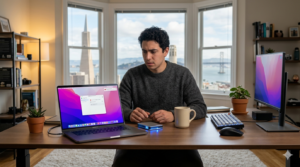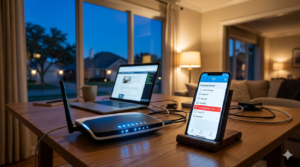
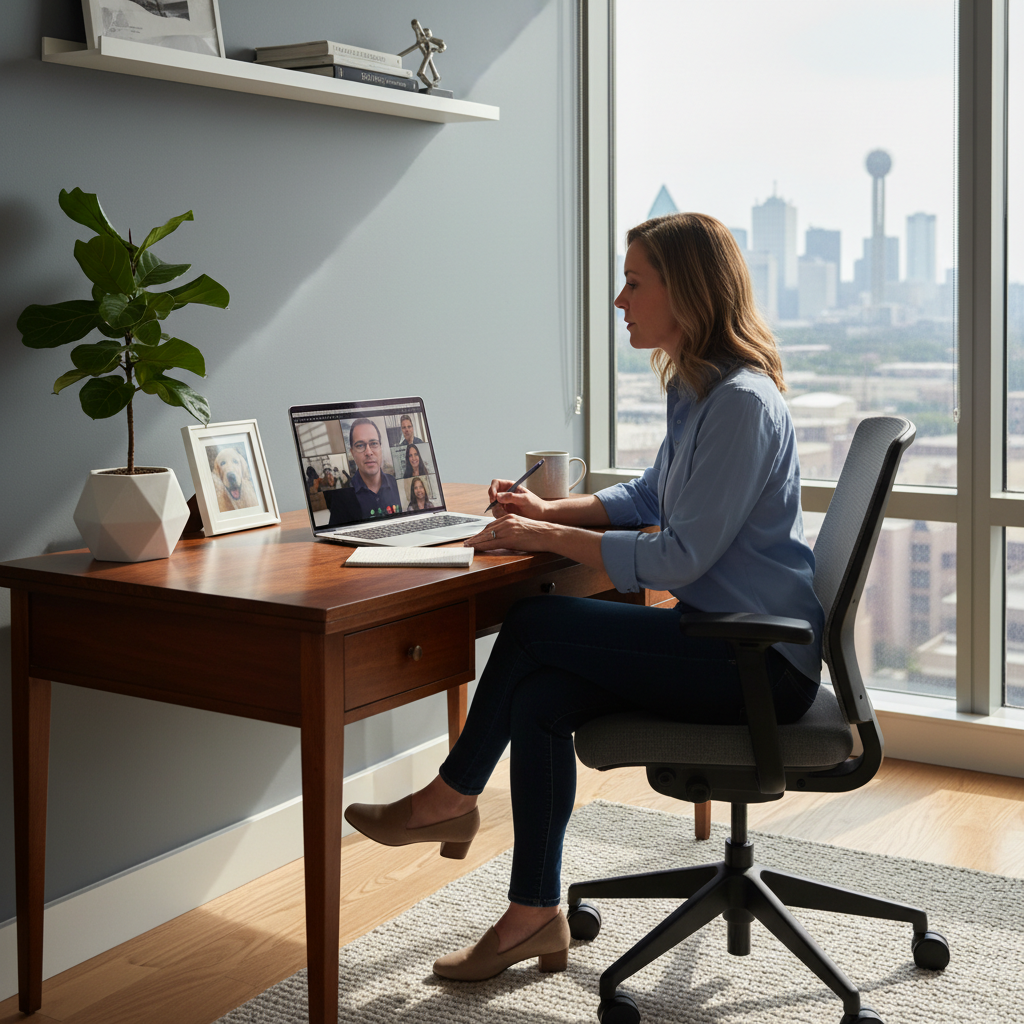
You’re five minutes away from an important client presentation, a virtual doctor’s appointment, or your child’s online class. You click the “Join Meeting” button, but nothing happens. Or worse, you get in, but the screen is black, or no one can hear you speak.
For home users across Dallas—from Uptown apartments to family homes in Highland Park—reliable video calls have become a necessity, not a luxury. We rely on Zoom, Microsoft Teams, and Google Meet to work remotely, attend school, and stay connected with loved ones. When the technology fails, it’s not just an inconvenience; it feels like the digital door to the world has slammed shut.
If you are struggling with choppy video, muted microphones, or an app that simply refuses to launch, you are not alone. These issues are common, but they are also fixable. Let’s explore why video calls fail on home computers and the steps you can take to get back online.
Common Signs of Video Call Issues
Technical problems with video conferencing software can manifest in many frustrating ways. Identifying the specific symptom is the first step toward finding a solution.
- No Video (Black Screen): You can see everyone else, but your box is black or shows a camera icon with a slash through it.
- No Audio: You can see people talking, but you can’t hear them, or they are frantically waving at you because they can’t hear you.
- Poor Connection (Lag and Freeze): The video freezes frequently, the audio is robotic or choppy, and you keep getting “Unstable Internet Connection” warnings.
- App Crashes: The application closes unexpectedly as soon as you try to join a meeting or share your screen.
- Grayed Out Buttons: You try to unmute yourself or start your video, but the buttons are unresponsive or grayed out.
Why Zoom or Video Calls Stop Working
Why does this happen, especially when your computer was working fine yesterday? Several factors can disrupt video calls on a home PC.
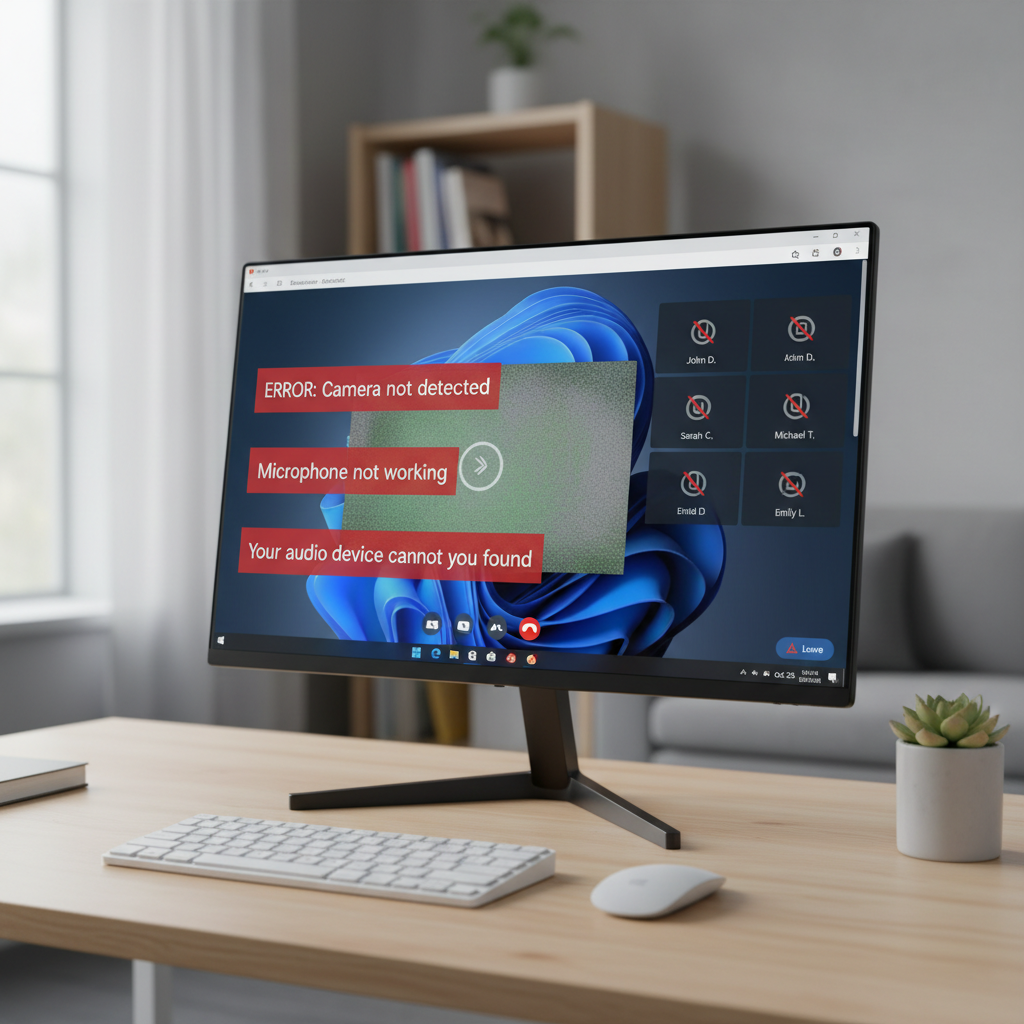
Outdated Software
Video conferencing platforms update frequently to improve security and add features. If your version of Zoom or Teams is too old, it may no longer be compatible with the servers hosting the meeting.
Privacy Settings Blocking Access
Windows and macOS have built-in privacy settings that control which apps can use your camera and microphone. If a recent update reset these permissions, your video app might be blocked from seeing or hearing you.
Internet Connectivity Problems
Dallas is a big city with heavy internet traffic. If your home network is congested—perhaps someone else is streaming a 4K movie while you try to work—your bandwidth might drop below what is needed for a stable video stream.
App Settings Misconfigurations
Sometimes the issue is within the app itself. You might have the wrong camera selected (like a virtual camera filter instead of your webcam) or the wrong microphone input (like your laptop mic instead of your headset).
System Resource Overload
Video calls require a surprising amount of processing power. If you have fifty browser tabs open and three other heavy programs running, your computer might not have enough resources left to process the video stream smoothly.
Safe Fixes You Can Try at Home
Before you miss your meeting entirely, try these beginner-friendly troubleshooting steps. They are safe to perform on any home computer.
1. Check Your Internet Speed
Is your connection fast enough? Go to a speed test website. You generally need at least 3-5 Mbps upload and download speeds for a high-quality group video call. If your Wi-Fi is weak, try moving closer to your router or plugging in an Ethernet cable.
2. Update Your Video App
Open your video conferencing app and look for the “Check for Updates” option in the main menu or settings. Installing the latest version often resolves bugs and compatibility glitches immediately.
3. Check Camera and Microphone Permissions
- On Windows: Go to Settings > Privacy > Camera. Make sure “Allow apps to access your camera” is turned On. Do the same for the Microphone settings.
- On Mac: Go to System Preferences > Security & Privacy > Privacy. Check the boxes next to your video app under both Camera and Microphone.
4. Restart Your Computer
It is the oldest advice in the book because it works. Restarting clears your computer’s temporary memory (RAM) and resets background processes that might be interfering with your camera or audio drivers.
5. Close Unnecessary Background Apps
Free up your computer’s resources. Close web browser tabs you aren’t using, shut down other communication apps (like Skype or Discord), and pause any large downloads.
When Basic Fixes Don’t Work
If you have restarted, updated, and checked your settings, but the camera is still dark or the audio is still silent, the issue may be more complex.
You could be dealing with corrupted system drivers, deep conflicts between software applications, or firewall settings that are aggressively blocking the video stream. At this point, trying random fixes from internet forums can be risky. You might accidentally disable important security features or delete system files that your computer needs to run properly.
How Remote Home Tech Support Can Help
Instead of risking your personal data or spending hours frustrated, let a professional handle it. Zircon Technovatives specializes in remote tech support specifically for home users. We can solve these problems without you ever leaving your desk.
Our technicians connect securely to your computer to:
- Diagnose the Root Cause: We don’t just guess; we look at error logs and driver statuses to see exactly why the video call is failing.
- Correct App Settings: We ensure that Zoom, Teams, or Meet is configured correctly to use your specific hardware.
- Fix Driver Issues: We can identify and repair corrupted or outdated webcam and audio drivers safely.
- Optimize Performance: We can tweak your system settings to prioritize video traffic, ensuring smoother calls in the future.
Why Dallas Home Users Choose Remote Tech Support
Living in the DFW metroplex means dealing with traffic and busy schedules. Dallas Remote support is the smart, modern solution for home tech issues.
- Convenience: Get help from the comfort of your home in Dallas. No need to unplug your PC and drive to a repair shop.
- Expert Guidance: Work with a technician who explains the problem in plain English, not confusing jargon.
- Cost-Effective: Our focused, remote sessions are often more affordable than onsite visits or big-box store repair services.
- Safety: You stay in control. You grant permission for the connection, watch the repair happen on your screen, and can disconnect at any time.
Zoom Not Working? Let’s Fix It Together
Video calls are how we stay connected in the modern world. Don’t let technical glitches silence you or keep you out of the picture. If basic troubleshooting hasn’t worked, it is time for a professional touch.
Need Help with Video Calls? Talk to a Tech Expert.
Contact Zircon Technovatives today. We’ll get your camera running, your audio clear, and your connection stable so you can join your next meeting with confidence.
Frequently Asked Questions (FAQs)
1. Why is my camera not working on Zoom?
This is often caused by privacy settings blocking the app, another program using the camera in the background, or an outdated webcam driver.
2. Can internet speed affect video call quality?
Yes, absolutely. Slow upload speeds or an unstable Wi-Fi signal can cause pixelated video, robotic audio, or dropped calls.
3. How do I fix audio issues during video calls?
First, check that you are not muted in the app. Then, ensure the correct microphone is selected in the app’s audio settings (e.g., your headset vs. your laptop mic). Finally, check your computer’s main sound settings to ensure the input volume isn’t set to zero.
4. Can remote tech support fix Zoom or video call problems?
Yes. As long as your computer can connect to the internet, we can remotely access your system to troubleshoot camera drivers, audio settings, and software conflicts effectively.
5. Is my computer too old for video calls?
Video conferencing can be demanding. If your computer is more than 5-7 years old, it may struggle with modern virtual backgrounds or HD video, but basic calling should still work if the system is optimized correctly.
6. How do I enable camera and microphone permissions?
In your computer’s main settings (under Privacy on Windows or Security & Privacy on Mac), you can view a list of apps that have requested access to your camera and mic. Ensure the toggle next to your video app is switched to “On” or checked.
7. How long does remote troubleshooting for video calls usually take?
Most video call issues can be resolved quickly. A typical session takes between 30 to 60 minutes, depending on the complexity of the driver or software conflict.