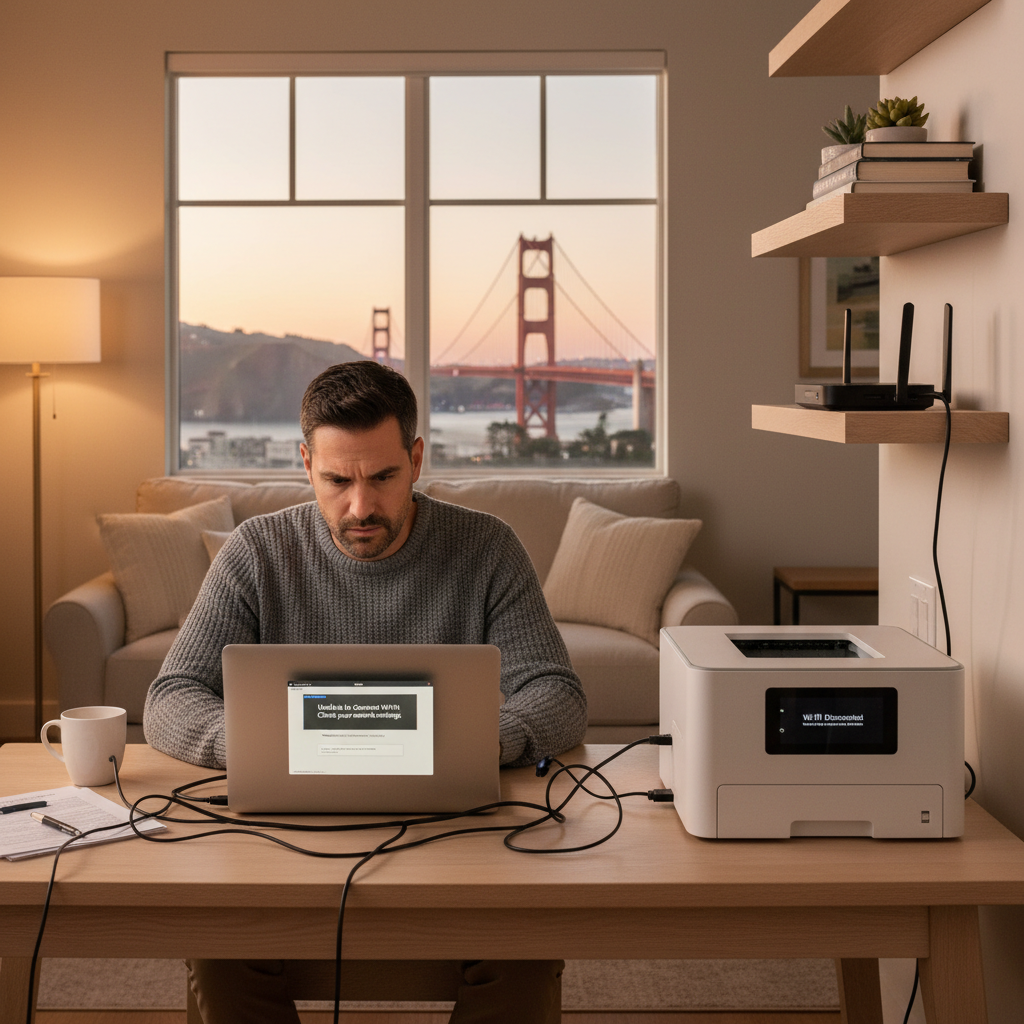
It happens at the worst possible moment. You have a critical contract to sign, a term paper due in an hour, or boarding passes to print for a flight out of SFO. You hit “Print,” and… nothing happens. Your computer says the printer is offline. Your printer says it’s connected. And you are left staring at a silent machine while the clock ticks down.
In San Francisco, where many of us rely on home offices tucked into Victorian flats or modern lofts, seamless technology isn’t just a luxury—it’s essential for our livelihoods. When your devices stop talking to each other, productivity grinds to a halt. The disconnect between your computer, your printer, and your Wi-Fi network is a common headache, but it’s rarely unfixable.
While it is tempting to blame the “ghosts in the machine,” the reality is often a specific technical conflict hiding in plain sight. At Zircon Technovatives, we help San Francisco residents resolve these digital standoffs remotely, ensuring your home office works as hard as you do.
Here is why your devices aren’t connecting and how to get them back on speaking terms.
Why Your Printer and Computer Are Ignoring Each Other
When devices fail to connect over Wi-Fi, it is usually due to a breakdown in communication protocols. Here are the most common culprits we diagnose for our clients in the Bay Area.
1. The “Ghost” Printer (IP Address Conflicts)
Your printer and your computer need to agree on where the printer “lives” on the network. This address is called an IP address. Sometimes, your router reassigns a new IP address to the printer after a power outage or a restart, but your computer is still trying to send documents to the old address.
Essentially, your computer is knocking on the wrong door. The printer is online and ready, but your computer is shouting instructions into an empty void.
2. Outdated or Corrupt Drivers
Drivers are the translators that allow your computer’s operating system to speak to your printer’s hardware. Manufacturers like HP, Canon, and Epson frequently update these drivers to patch security holes or fix bugs.
If your computer runs an automatic OS update (common with Windows and macOS), your old printer driver might suddenly become incompatible. The result is a printer that looks like it should work but refuses to accept any jobs.
3. Firewall and Security Software Overkill
San Francisco residents are tech-savvy and often have robust security software installed. However, sometimes these firewalls are too aggressive. They might interpret your printer’s attempt to communicate as an intrusion from an unknown device.
When this happens, your antivirus or firewall quietly blocks the connection. You won’t necessarily get a “blocked” notification; the printer simply won’t appear, or jobs will sit in the queue indefinitely.
4. Network Frequency Mismatch
Modern routers in San Francisco homes often broadcast two different Wi-Fi networks: 2.4GHz and 5GHz.
- 2.4GHz: Slower, but travels through walls better (good for printers in another room).
- 5GHz: Faster, but has shorter range.
If your laptop is connected to the 5GHz network and your older printer can only see the 2.4GHz network, some routers isolate them from each other. They are technically on the same internet connection but cannot “see” one another to exchange data.
Actionable Solutions to Try Before Calling for Help
Before you resign yourself to a paperless existence, try these troubleshooting steps.
Step 1: The Full Network Restart
It sounds cliché, but it is the most effective first step.
- Turn off your printer.
- Shut down your computer.
- Unplug your router from the wall for 60 seconds.
- Plug the router back in and wait for the internet lights to stabilize.
- Turn your computer and printer back on.
This forces the router to re-introduce itself to all your devices, often resolving IP conflicts automatically.
Step 2: Clear the Print Queue
Sometimes a single corrupted document gets “stuck” in the print queue, blocking everything behind it.
- On Windows: Search for “Printers & Scanners,” select your printer, click “Open queue,” and cancel all documents.
- On Mac: Open “Printers & Scanners,” select your printer, click “Open Print Queue,” and hit the small “x” next to the stuck job.
Step 3: Remove and Re-Add the Printer
If the driver is corrupt, the best fix is a fresh start. Go to your settings, remove the printer entirely from your list of devices, and then use the “Add Printer” function to find it again. This forces your computer to download the freshest version of the driver and locate the printer at its correct new IP address.
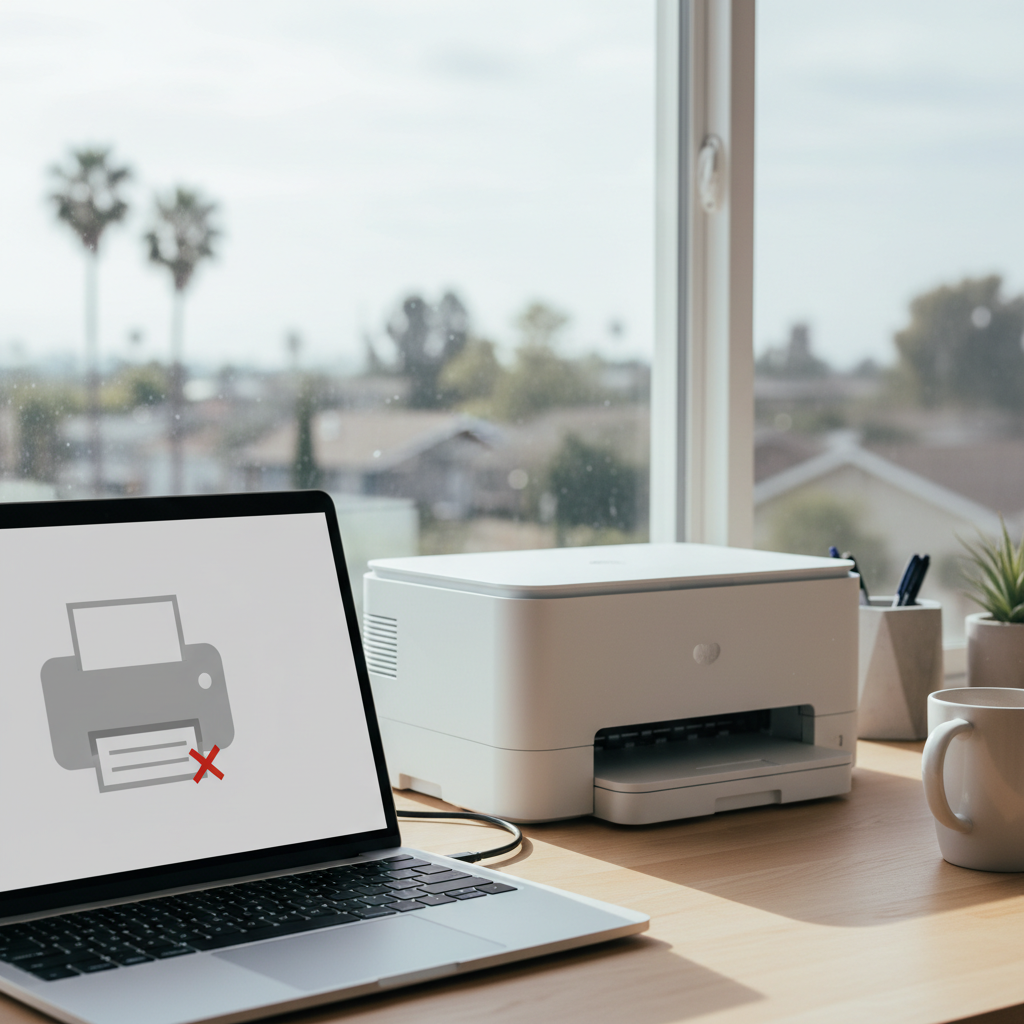
Step 4: Check Your Wi-Fi Network Name (SSID)
Ensure both devices are on the exact same network. If you have a guest network (e.g., “SmithHome_Guest”), make sure your printer didn’t accidentally connect to that while your computer is on the main network (“SmithHome”). Guest networks often have security settings that prevent devices from talking to each other.
When You Need Professional Remote Support
You have restarted the router, cleared the queue, and checked the network, but the printer still refuses to print. This suggests a deeper configuration error, potentially involving port settings, complex firewall rules, or router firmware issues.
This is where Zircon Technovatives steps in.
We provide expert remote home tech support in San Francisco tailored to your specific setup. We do not need to visit your home to fix the problem. Our technicians can securely connect to your computer to:
- Diagnose hidden driver conflicts and install the correct software versions.
- Configure static IP addresses for your printer so it never gets “lost” again.
- Adjust firewall settings to allow printer communication without compromising security.
- Ensure your network frequency settings are compatible across all devices.
We focus on getting you back to work quickly. Our team is available during standard business hours to untangle even the most stubborn tech knots.
Conclusion
In a city that runs on innovation, you shouldn’t be held back by a printer that won’t print. Connectivity issues are frustrating, but they are logical problems with logical solutions. By understanding the basics of how your devices communicate, you can often solve the issue yourself.
But when the troubleshooting steps fail, don’t waste hours fighting with your hardware. Let the experts handle the technical details so you can focus on what matters.
Is your printer giving you the silent treatment? Contact Zircon Technovatives today for professional remote assistance.
Frequently Asked Questions (FAQs)
1. Why won’t my printer connect to my home Wi-Fi?
The most common reasons are a change in the Wi-Fi password that hasn’t been updated on the printer, the printer being too far from the router, or the printer trying to connect to a 5GHz frequency band when it only supports 2.4GHz.
2. Can outdated drivers cause connectivity issues?
Yes. If your computer’s operating system updates but the printer driver stays the same, they may stop “speaking the same language.” Updating the driver ensures they can communicate properly.
3. How can I fix network settings on my computer?
For printer issues, you often don’t need to change complex network settings. Instead, try removing the printer from your “Printers & Scanners” menu and re-adding it. This usually resets the necessary network connection settings automatically.
4. What services does Zircon Technovatives offer for printer and computer troubleshooting?
We offer comprehensive remote diagnostics. We can remotely access your computer to fix driver issues, resolve IP address conflicts, configure firewall permissions, and ensure your printer is correctly set up on your network.
5. How do I know if I need professional tech support for this issue?
If you have restarted your router and devices, updated your drivers, and re-added the printer but still cannot print, the issue is likely a complex network configuration error. Professional support can identify and fix these hidden issues quickly.