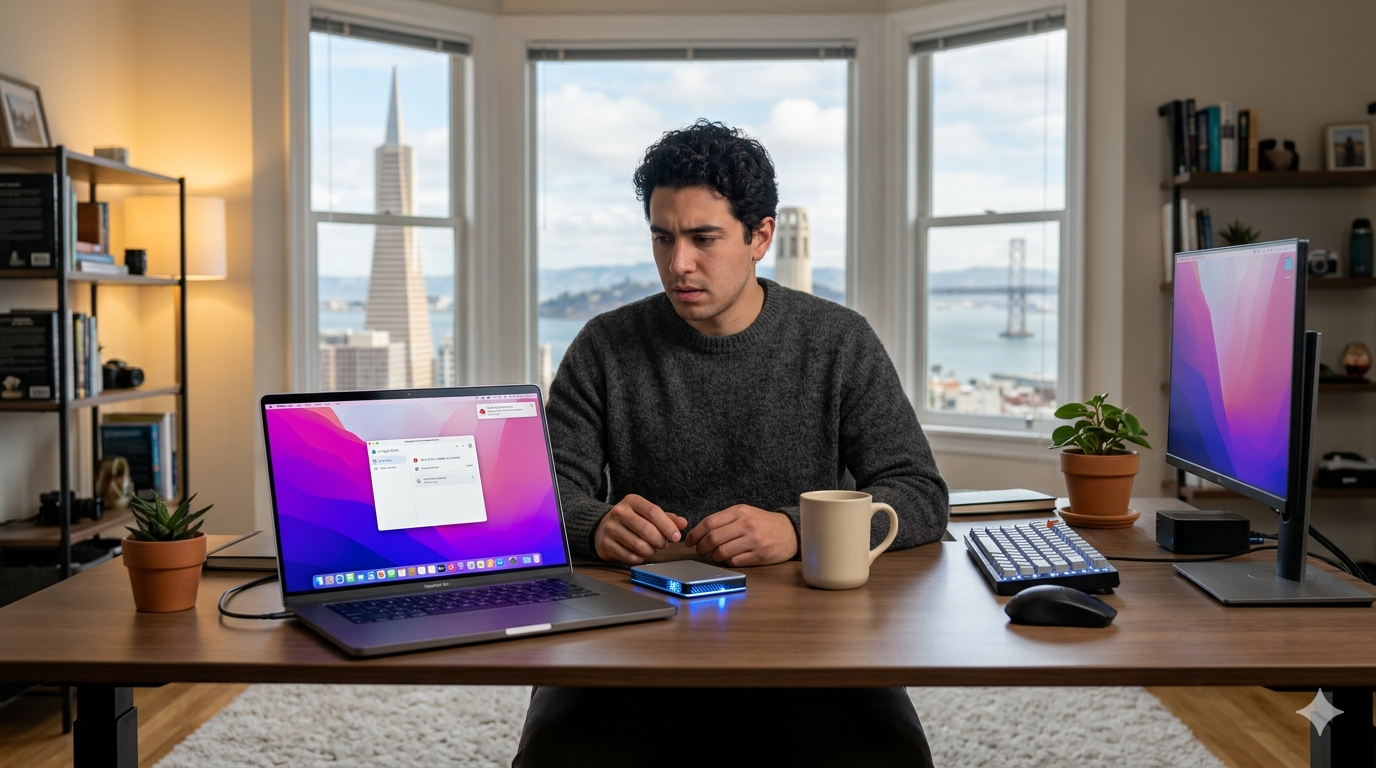
She noticed it by accident. A San Francisco freelance designer was sending a client a revised logo file — only to find the version in Google Drive was three days old. The updated file was sitting on her MacBook, never synced. No error message, no notification, no warning of any kind. Google Drive for Desktop had quietly stopped working, and she’d had no idea.
For anyone who relies on Google Drive as their primary backup and collaboration tool, this scenario is genuinely alarming. Your files feel safe because they’re in “the cloud” — but if Google Drive not syncing on your Mac in San Francisco has been happening silently, those files exist only on your local machine. One spilled coffee, one failed SSD, one stolen laptop — and they’re gone.
The fix is usually simpler than the panic suggests. But you do need to know where to look, because Google Drive for Desktop isn’t always forthcoming about what went wrong. This guide walks through every common cause and every working fix, in plain language.
Why Google Drive Stops Syncing on Mac — The Common Causes
Google Drive for Desktop is generally reliable, but it has a specific set of failure points that trip up Mac users in San Francisco more often than you’d expect — particularly after macOS updates, which Apple releases frequently.
macOS permission changes. This is the single most common cause of a Google Drive Mac sync error after an update. Every time Apple releases a significant macOS version, the operating system resets or restricts permissions for third-party apps — including Google Drive. The app loses access to the folders it was previously syncing without any visible prompt telling you this happened. Drive keeps running in the background, appearing normal, but syncing nothing.
Google account storage full. Google gives every account 15GB of free storage shared across Drive, Gmail, and Google Photos. When that storage fills up, Drive stops accepting new files silently. Many SF freelancers and remote workers hit this limit without realizing it, especially if they’ve been using the same Google account for years.
Google Drive for Desktop app needs updating. An outdated version of the app frequently loses compatibility with current macOS or Google’s servers. Google pushes backend changes that older app versions can’t handle, which causes sync to stall without explanation.
Conflicting security or antivirus software. Some Mac security tools — particularly third-party firewalls or endpoint protection software — flag Google Drive’s background sync activity as suspicious and quietly block it. The security software logs it, but Google Drive shows nothing unusual.
File or folder name conflicts. Google Drive doesn’t support certain characters in file names — colons, slashes, question marks, and a few others. A single file with an unsupported name in a folder can sometimes cause the entire folder’s sync to pause while Drive tries to figure out what to do with it.
Internet connection interruption during sync. If your Comcast Xfinity or Sonic connection dropped briefly while Drive was mid-sync, it sometimes fails to resume automatically. It stalls, shows a perpetual “syncing” spinner, and never finishes.
How to Check What’s Actually Happening With Your Google Drive Sync on Mac
Before jumping into fixes, spend two minutes confirming what you’re actually dealing with.
Check the menu bar icon. Click the Google Drive icon in your Mac’s menu bar — the small triangle icon near the clock. If sync is working normally, you’ll see a checkmark or a spinning sync animation. If something is wrong, you’ll see a pause symbol, an error icon, or a warning triangle. This is your first and most important signal.
Look at your Google account storage. Open drive.google.com in your browser and check the storage meter at the bottom left of the sidebar. If it’s showing red or says “Storage full,” that’s your answer — no new files will sync until you free up space or upgrade your storage plan.
Check when files were last synced. Navigate to your Google Drive folder in Finder. Right-click a file you know you’ve modified recently and check “Get Info.” Compare the modification date on your Mac against the version visible in drive.google.com through your browser. If the browser version is days behind, sync has been failing for exactly that long.
Look in System Settings for permission issues. Go to System Settings → Privacy & Security → Full Disk Access. Scroll through the list and confirm that Google Drive appears and is toggled on. Then check Files and Folders in the same Privacy & Security menu and verify Drive has access to the folders you’re syncing. If it’s not listed or is toggled off, you’ve found your problem.
Step-by-Step Fixes for Google Drive Not Syncing on Your SF MacBook
Work through these in order — most users find their fix within the first two or three steps.
Fix 1 — Restart Google Drive for Desktop.
Click the Drive icon in your menu bar → click the Settings gear → Quit Google Drive. Wait 10 seconds, then reopen it from your Applications folder. A clean restart clears minor connection errors and often gets stalled syncs moving again immediately.
Fix 2 — Restore macOS permissions.
Go to System Settings → Privacy & Security → Full Disk Access. If Google Drive isn’t listed, click the + button and add it manually from your Applications folder. Do the same under Files and Folders. Restart Google Drive after making these changes. This single fix resolves the majority of Google Drive for Desktop not working cases that appear after a macOS update.
Fix 3 — Check and clear your Google storage.
Visit drive.google.com → click Storage in the left sidebar to see a breakdown of what’s using space. Empty your Google Drive trash (right-click Trash → Empty Trash). Delete large files you no longer need, or purchase a Google One storage plan if you’re consistently close to your limit. Once space is available, Drive resumes syncing automatically within a few minutes.
Fix 4 — Update Google Drive for Desktop.
Click the Drive menu bar icon → Settings gear → scroll down and check for an “Update Available” prompt. If one exists, install it and restart. If no update prompt appears, uninstall Google Drive for Desktop completely, download the latest version fresh from drive.google.com/drive/downloads, and reinstall. This is the most reliable way to eliminate app version issues.
Fix 5 — Find and rename problematic files.
Open your Google Drive folder in Finder and use Command + F to search. Look for any files with unusual characters in their names — colons (:), slashes (/), asterisks (*), or question marks (?). Rename any you find using only standard letters, numbers, and hyphens. Drive will retry syncing those files automatically once the names are clean.
Fix 6 — Sign out and sign back in.
Click the Drive menu bar icon → Settings gear → Preferences → click your account name → Sign Out. Close the app completely, reopen it, and sign back in with your Google account. This forces Drive to re-establish its connection to Google’s servers and clears authentication issues that sometimes develop over time.
Fix 7 — Check your firewall and security software.
If you’re running a third-party Mac firewall or antivirus, temporarily disable it and check whether Drive syncs. If it does, your security software is the culprit. Add Google Drive to the exception or allowlist in your security tool’s settings — this lets it sync freely without disabling your protection entirely.
How Zircon Technovatives Helps San Francisco Mac Users Resolve Cloud Storage Issues
Cloud storage problems have a way of going unnoticed until something important is lost. For San Francisco freelancers, remote workers, and small business owners who depend on Google Drive as their primary file system, a silent sync failure isn’t a minor inconvenience — it’s a genuine data risk.
When the standard fixes don’t resolve the issue, or when you need to confirm that your files are actually safe and fully backed up, that’s where a fresh pair of expert eyes makes a real difference.
Zircon Technovatives provides 100% remote Mac support for San Francisco home users — no appointment, no technician visit, no waiting. Through a secure remote session, our certified technicians can diagnose exactly why your fix Drive sync Mac SF issue is persisting, check your full macOS permission structure, verify your Google account storage and sync status, and walk through any configuration changes needed to get everything working correctly.
We also help you build a reliable backup strategy so that Google Drive isn’t the only safety net for your important files — because one layer of backup is rarely enough for critical work.
If your Drive has been silently misbehaving, or you just want confidence that your files are actually where you think they are, chat with us to get started — or get a free IT audit and we’ll check your whole setup.
Frequently Asked Questions
Google Drive shows a sync error on my SF Mac but doesn’t say what’s wrong. How do I find out?
Click the Google Drive icon in your Mac’s menu bar and look carefully for any files flagged with an orange triangle warning icon alongside them. Hover your cursor over each one to reveal the specific error message attached to that file. The most common errors you’ll encounter are “You don’t have permission to sync this file” — which is a macOS permissions issue that needs to be resolved in System Settings — “File name contains unsupported characters” — which requires renaming the file to remove the problematic character — and “Sync is paused,” which usually means your Google account storage is full and needs to be cleared before syncing can resume.
My Google Drive was syncing fine in San Francisco but stopped after a macOS update. Why?
macOS updates frequently revoke permissions that third-party apps like Google Drive previously held, and they do this without any notification to you or the app. Navigate to System Settings → Privacy & Security → Files and Folders, find Google Drive in the list, and confirm it has access to all the folders you expect it to sync. Then check the Full Disk Access section in the same menu and add Google Drive if it’s missing. This permission restoration is the most common fix for sync failures that appear immediately after a macOS update and have no other obvious explanation.
Google Drive is syncing but it’s taking days for files to upload from my SF MacBook. Is that normal?
Extremely slow upload times are almost always caused by your home internet connection’s upload speed being the bottleneck rather than anything wrong with Google Drive itself. Most residential plans in San Francisco — including Comcast Xfinity — deliver download speeds of 200Mbps or higher but upload speeds of only 10–20Mbps, which makes uploading large video files, high-resolution photo collections, or design assets genuinely slow. Check your upload speed at fast.com, which measures upload alongside download. For large batch uploads, leave your MacBook plugged in, connected via ethernet rather than WiFi, and with sleep mode disabled overnight — this is the most reliable way to get large syncs completed without interruption