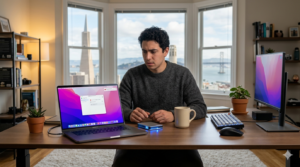
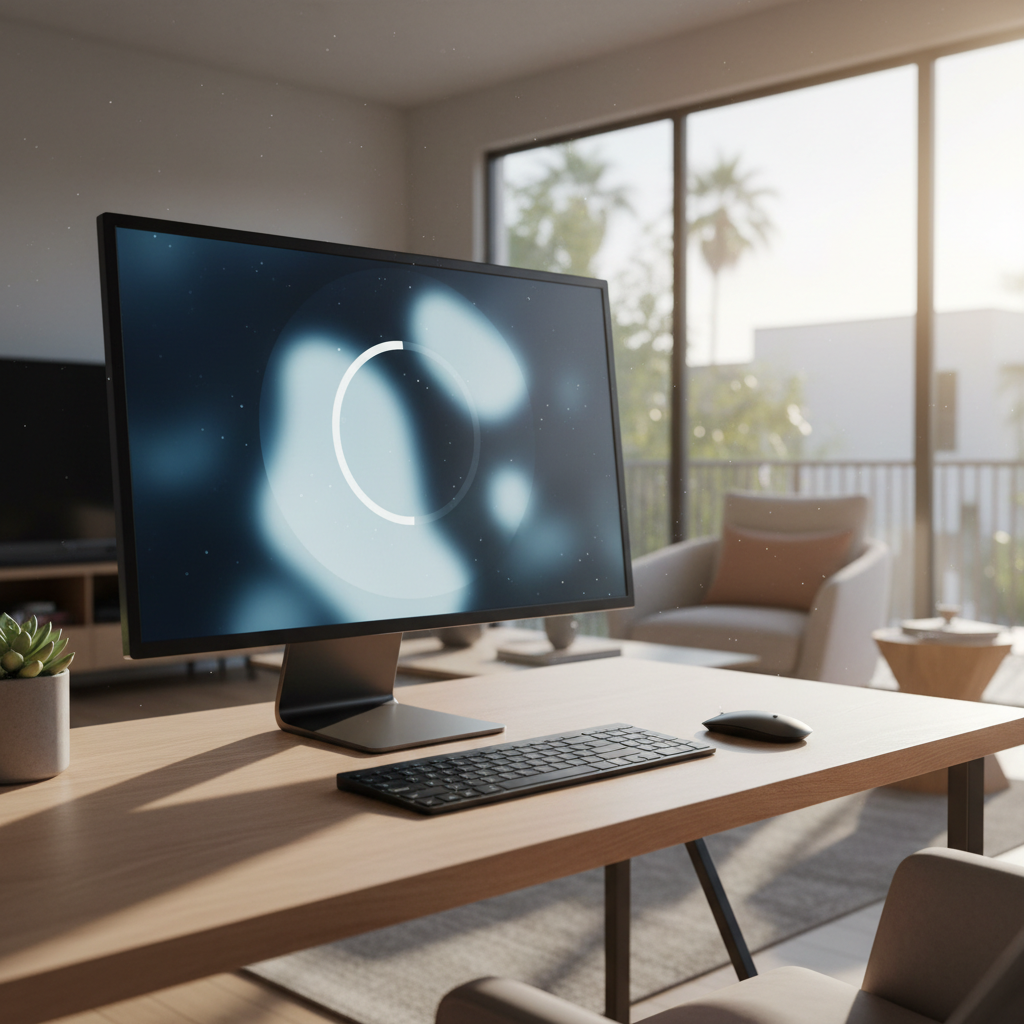
There are few technology problems more alarming than a computer that suddenly freezes. One moment you are replying to an email or browsing online, and the next, everything stops. The mouse pointer is stuck, the keyboard is unresponsive, and the screen is a frozen snapshot in time. When this starts happening right after a Windows update, it is natural to feel frustrated and concerned.
For many home users across San Francisco, from the Sunset District to Nob Hill, a reliable computer is essential. It is how you work from home, manage your finances, connect with family, and stay informed. A PC that keeps freezing after a Windows update disrupts your entire day and can feel like a serious, unsolvable problem.
The good news is that you are not alone, and this is a common issue. Updates are complex, and sometimes they do not play nicely with a computer’s existing setup. This guide will reassure you by explaining the typical signs, the likely causes, and what safe steps you can take. We will also clarify how professional remote tech support can resolve these Windows update issues without you needing to navigate the busy streets of San Francisco for a repair.
Common Signs Your PC Is Freezing After a Windows Update
The term “freezing” can describe several frustrating behaviours. If your PC keeps freezing after a Windows update, you might be experiencing one or more of the following symptoms:
- A Completely Unresponsive Screen: The most classic sign. Everything on your display is locked in place. You cannot move the mouse, click on icons, or close any windows.
- Mouse or Keyboard Stops Working: Your screen might still be showing moving content (like a video), but you have lost all ability to interact with it. Your mouse pointer might disappear or simply refuse to move.
- Applications Not Opening or Crashing: You might be able to move the mouse, but when you try to open a programme, nothing happens. Or, an application you are using might suddenly crash and close without warning, often followed by a system-wide freeze.
- PC Freezes During Startup or Login: The problem can even prevent you from getting to your desktop. The computer might freeze on the welcome screen, right after you enter your password, or while displaying the spinning dots that indicate it is loading.
These issues point towards a conflict that was likely introduced by the recent update.
Why Windows Updates Can Cause Freezing Issues
Windows updates are designed to improve security and performance, but they are incredibly complex. They have to work with millions of different combinations of hardware and software. Sometimes, this process hits a snag. Here are the most common reasons a Windows update causes a PC to freeze, explained in simple terms.
- Driver Incompatibility: This is a leading cause. Drivers are tiny pieces of software that let Windows communicate with your hardware (like your graphics card, Wi-Fi adapter, or printer). An update can install a new driver that conflicts with your specific hardware, causing the system to become unstable and freeze.
- Incomplete or Failed Updates: If your internet connection dropped, or the computer was turned off during the update process, the installation may be corrupted. Your PC is left in a confused state, with a mix of old and new files that do not work together properly, leading to freezes.
- Background Updates Consuming Resources: Sometimes, the update is not truly finished. After your PC restarts, Windows might still be performing intensive tasks in the background, organising files and finalising settings. This can consume all your system’s resources, making it feel like it is frozen.
- Conflicts with Antivirus or Other Software: Security software, in particular, operates at a very deep level of the operating system. A major Windows update can change rules that your antivirus program relies on, causing a conflict that locks up the entire system.
- Older Hardware Struggling with Updates: A new Windows update might be designed for more modern hardware. If your computer is several years old, it might not have the processing power or memory to handle the demands of the new software, causing it to freeze under the strain.
Safe Things You Can Try First at Home
Before panicking, there are a few safe, beginner-friendly steps you can take. These actions will not make things worse and can sometimes resolve simple post-update glitches.
Important: We strongly advise against following complex guides that tell you to edit the Windows Registry, change BIOS settings, or manually delete system files. These actions can cause permanent damage if done incorrectly.
Stick to these simple checks:
- Restart the PC Properly: If your computer is frozen, you may have to force a shutdown by holding the power button. However, once it reboots, try performing a clean restart. Go to the Start Menu, click the Power icon, and select “Restart.” This can clear temporary conflicts.
- Allow Updates to Fully Complete: If your PC seems sluggish or freezes intermittently after an update, give it time. Connect it to the internet, and let it sit for an hour or two. It might be finishing important background processes.
- Disconnect Unnecessary External Devices: Unplug any non-essential USB devices like printers, external hard drives, webcams, or game controllers. A driver conflict with one of these peripherals could be the cause of the freezing. If the freezing stops, you have found the culprit.
- Check for Pending Updates: Sometimes, one update needs another to work correctly. Go to Settings > Update & Security > Windows Update and click “Check for updates.” There might be a follow-up patch that fixes the bug you are experiencing.
If the computer freezing after an update persists after trying these steps, it is a sign of a deeper issue.
When Freezing Keeps Happening
Repeatedly forcing your computer to shut down can lead to file corruption and make the problem worse. If your PC continues to freeze, it is best to stop the cycle of trial and error.
This is especially true when it comes to “Windows fix” tools you might find online. Many free downloadable programmes that promise to fix freezing issues are ineffective at best and malicious at worst. They can install unwanted software or make system changes that are difficult to reverse. When your PC is unstable, the safest move is to seek professional, trustworthy help.
How Remote Home Tech Support Can Help
You do not need to unplug everything and find a repair shop in San Francisco. Because these Windows update issues are software-based, they are perfectly suited for remote home tech support. A trained technician can connect to your PC securely (with your permission) to diagnose and fix the problem.
Here is how Zircon Technovatives helps:
- Diagnose Post-Update Freezing: We use professional diagnostic tools to analyse system logs and identify the exact cause of the conflict—whether it is a bad driver, a corrupted update file, or a software clash.
- Fix Driver and Software Conflicts: We can safely roll back, update, or reinstall the problematic driver causing your PC to freeze. We can also identify and reconfigure other software that is conflicting with the new Windows environment.
- Stabilise Windows After Updates: If an update was corrupted, we can use advanced tools to repair the Windows installation without deleting your personal files.
- Improve System Performance Safely: While we are connected, we can also perform a general health check to ensure your system is running optimally, helping prevent future problems.
All of this is done remotely, while you watch from the comfort of your home.
Why San Francisco Home Users Choose Remote Tech Support
For residents across San Francisco, from remote workers in SoMa to families in the Richmond District, remote support offers clear advantages.
- Help Without Visiting a Repair Shop: No need to navigate traffic, find parking, or carry your equipment across the city. The help comes directly to you.
- Step-by-Step Guidance from Home: You are part of the process. The technician explains what is happening in plain English, so you understand the fix.
- Reduced Stress and Trial-and-Error: Stop the frustrating cycle of random reboots. A professional can identify the issue efficiently and solve it correctly.
- Cost-Effective Troubleshooting: Remote support is often more affordable than in-person repairs, as it eliminates travel time and overheads.
PC Freezing After a Windows Update? Let’s Fix It Together
An unstable computer is a major source of stress. You do not have to solve this complex problem on your own. Our team is here to provide clear, professional assistance to get your PC running smoothly again.
Get Remote Tech Support for Windows Update Issues
We specialise in resolving Windows update issues on home computers. Let us take the guesswork out of the equation and provide a stable, reliable fix.
Not Sure Why Your PC Keeps Freezing? Talk to a Tech Expert
Frequently Asked Questions (FAQs)
Why does my PC freeze after a Windows update?
This is often due to an incompatibility between the new update and your computer’s hardware drivers, a conflict with your antivirus software, or a corrupted update file.
Can Windows updates cause driver problems?
Yes, this is very common. An update can install a new generic driver that does not work well with your specific hardware, leading to instability and freezing.
Is it safe to keep using my PC if it freezes?
While occasional freezing is not immediately dangerous, frequent freezing that requires a hard shutdown can lead to data corruption and damage your operating system over time. It is best to get the underlying issue resolved.
Should I uninstall the latest Windows update?
This can be a solution, but it is a complex process that can sometimes cause more problems if not done correctly. It is often better to fix the conflict (e.g., the driver) than to remove the entire security update. A technician can determine the safest course of action.
How long do post-update issues usually last?
Some minor issues resolve themselves as Windows finishes background tasks. However, if the freezing is consistent and lasts more than a day, it likely points to a deeper conflict that requires manual intervention.
Is this a hardware or software problem?
If the freezing started immediately after a Windows update, it is overwhelmingly likely to be a software problem.